
On this page
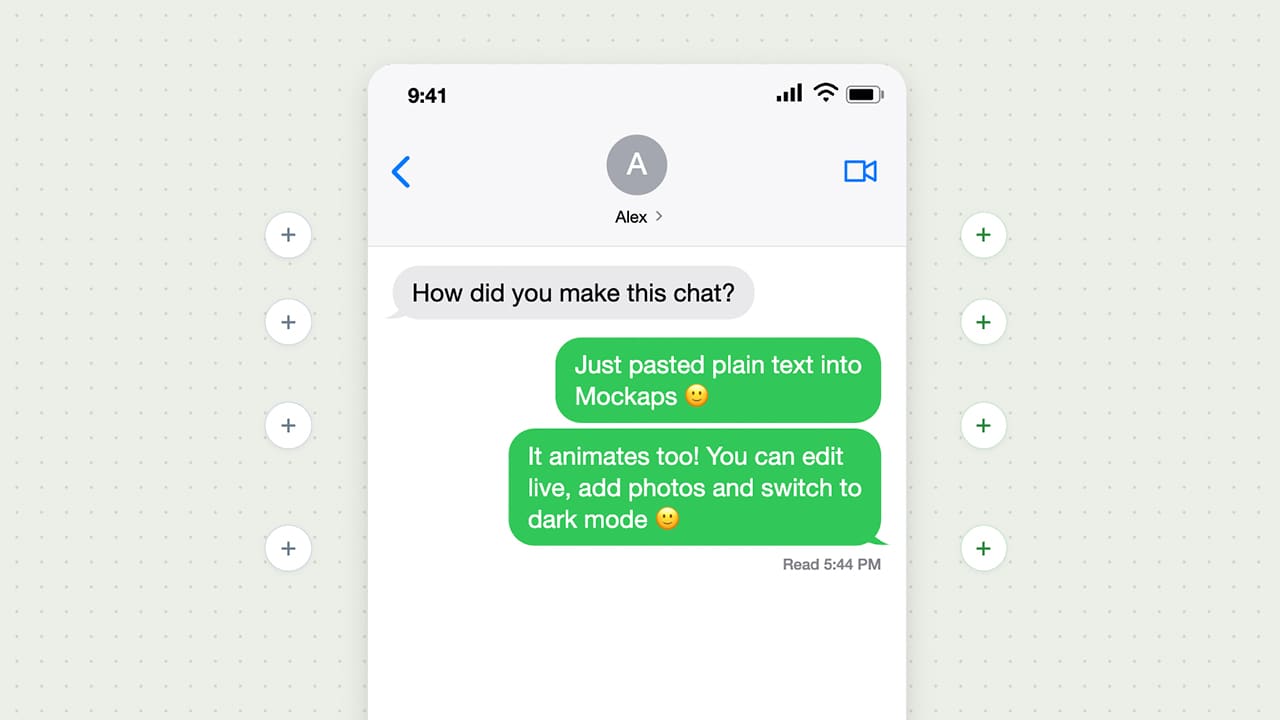
Already have a conversation written out?
You can paste it into the iOS Messages Mockup Generator and turn it into an editable chat.
Then change the words on the canvas, add a photo and let the messages appear one by one.
You can use the same steps for a story, a campaign concept or a presentation.
Before you start
Creating the chat, downloading PNG or JPG images and previewing animations are free.
Downloading an animated MP4 requires an active Mockaps Pro plan.
The tool creates a classic iOS Messages mockup.
Your conversation stays in the editor and it does not send real messages or connect to an Apple account.
1. Paste your conversation as plain text or manually add single bubbles
For pasting a conversation, start each message on a new line.
Use You: for your side and the other person’s name for theirs.
Copy this short example:
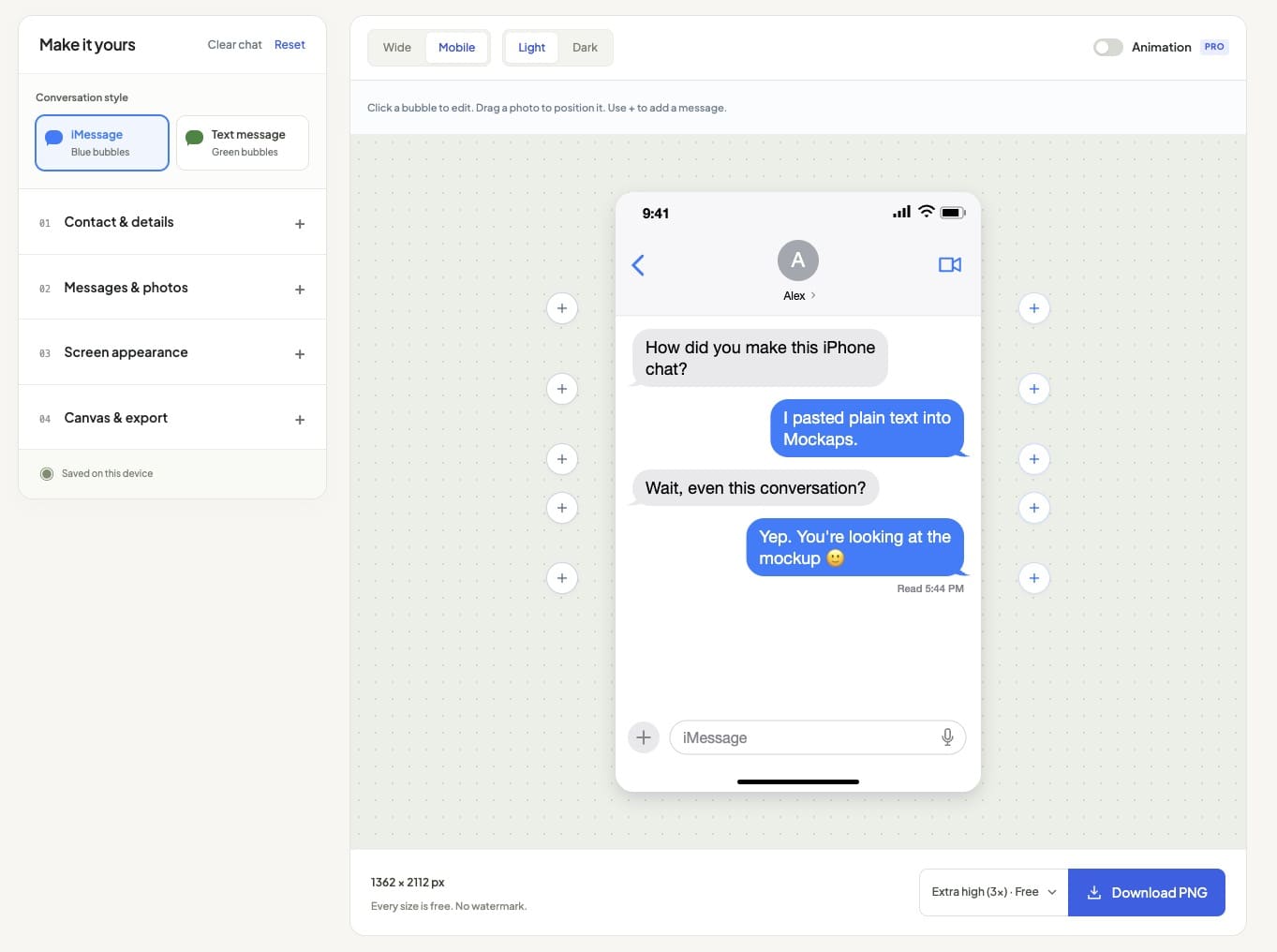
Alex: How did you make this iPhone chat?
You: I pasted plain text into Mockaps.
Alex: Wait, even this conversation?
You: Yep. You're looking at the mockup 🙂
Keep one contact name throughout the conversation.
Each new speaker label creates a new message, including consecutive messages from the same person.
Need a line break inside a bubble?
Indent the next line with a space and it continues the previous message.
You can import up to 20 messages, with up to 500 characters per message.
NB: You can add photos after importing the text.
2. Turn the text into message bubbles
Open the generator and find Paste conversation below the download button.
- Choose Paste conversation.
- Paste the example into the Conversation field.
- Choose Preview conversation and check the names, message order and sides.
- Choose Use conversation to apply it to the canvas.
Alex’s messages appear on the left.
Yours appear on the right, in blue for iMessage or green for Text message.
Working on an existing chat? Importing replaces its messages and photos. Use Save project first if you want an editable copy. After importing, Undo import restores the previous draft until you reload the page.
3. Edit the text directly on the canvas
Click a text bubble and change the words.
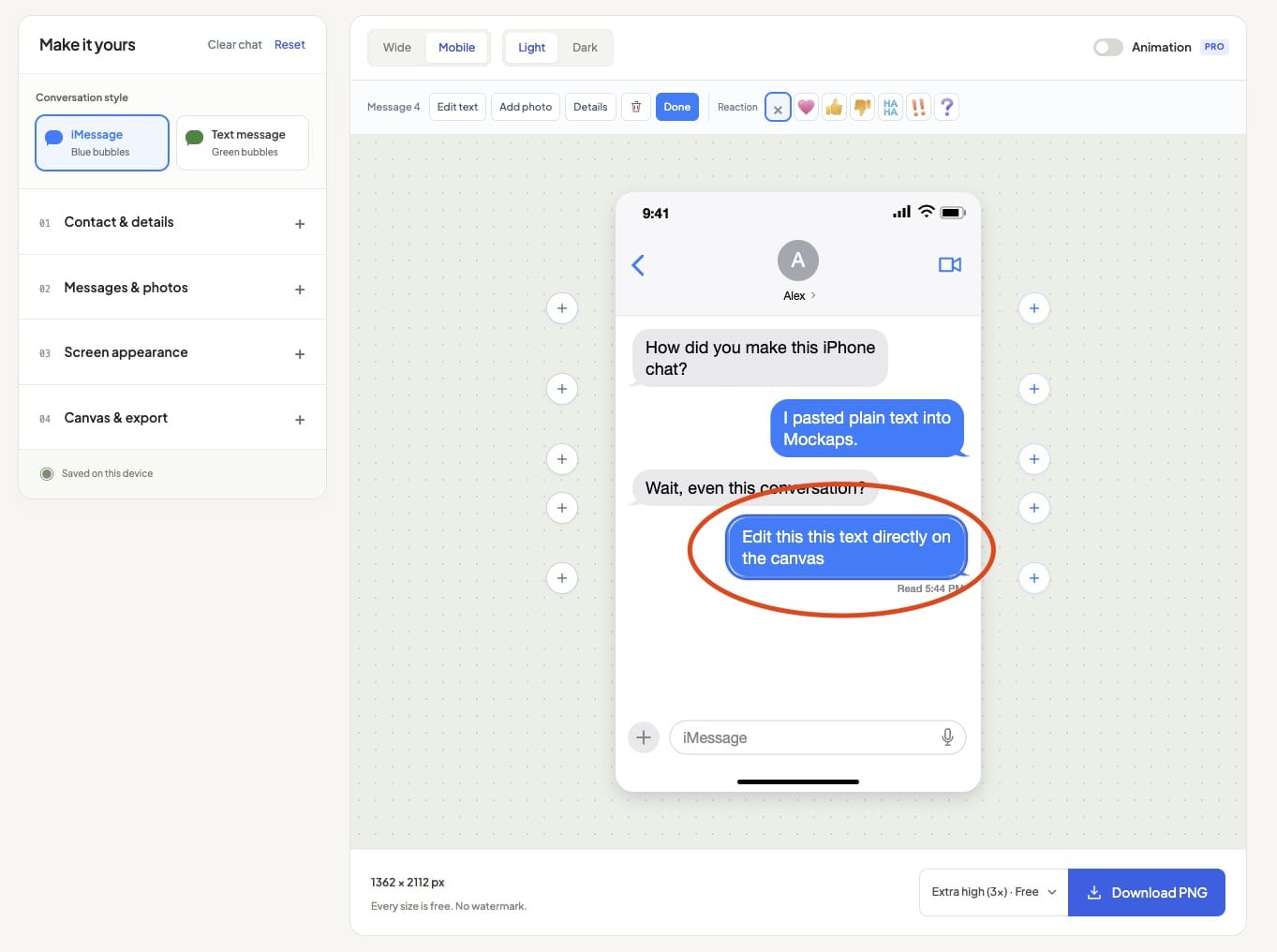
The chat updates as you type, so you can see how the new text fits.
For example, change Alex’s second message to “Can I add photos too?” Then rewrite your reply to suit the next part of your story.
The + controls let you insert messages where you need them.
Use the left side for your contact and the right side for your own replies.
Open Contact & details to change the name and profile photo.
Choose blue or green bubbles under Conversation style, then compare Light and Dark above the canvas.
Keep each message short enough to read comfortably.
You can adjust the font size in Screen appearance.
4. Add a photo to the conversation
Open Messages & photos and choose + Photo, then select your image.
Set the sender for the new photo message in the sidebar.
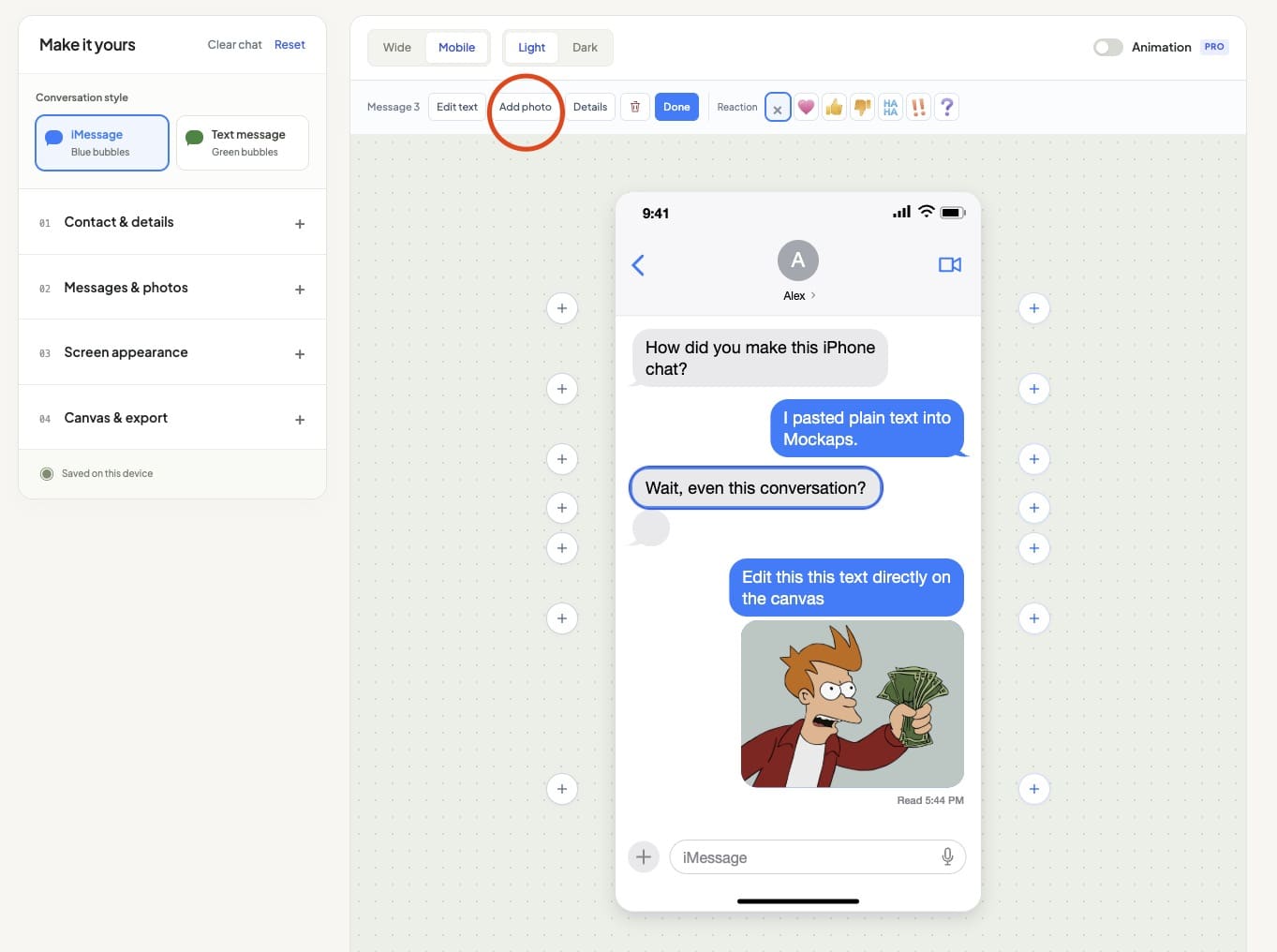
You can also select a message on the canvas and choose Add photo from the toolbar above the preview.
Use PNG, JPG or WebP files up to 8 MB. Adjust the zoom and drag the photo to position it inside its bubble.
For this example, try a screenshot of the mockup you just made.
It gives Alex something to react to and makes the conversation feel connected to what you’re showing.
5. Let the messages animate automatically
Turn on Animation above the preview, then press Play.
The messages appear in order.
Optional typing dots show before incoming replies, and the conversation scrolls as it grows.
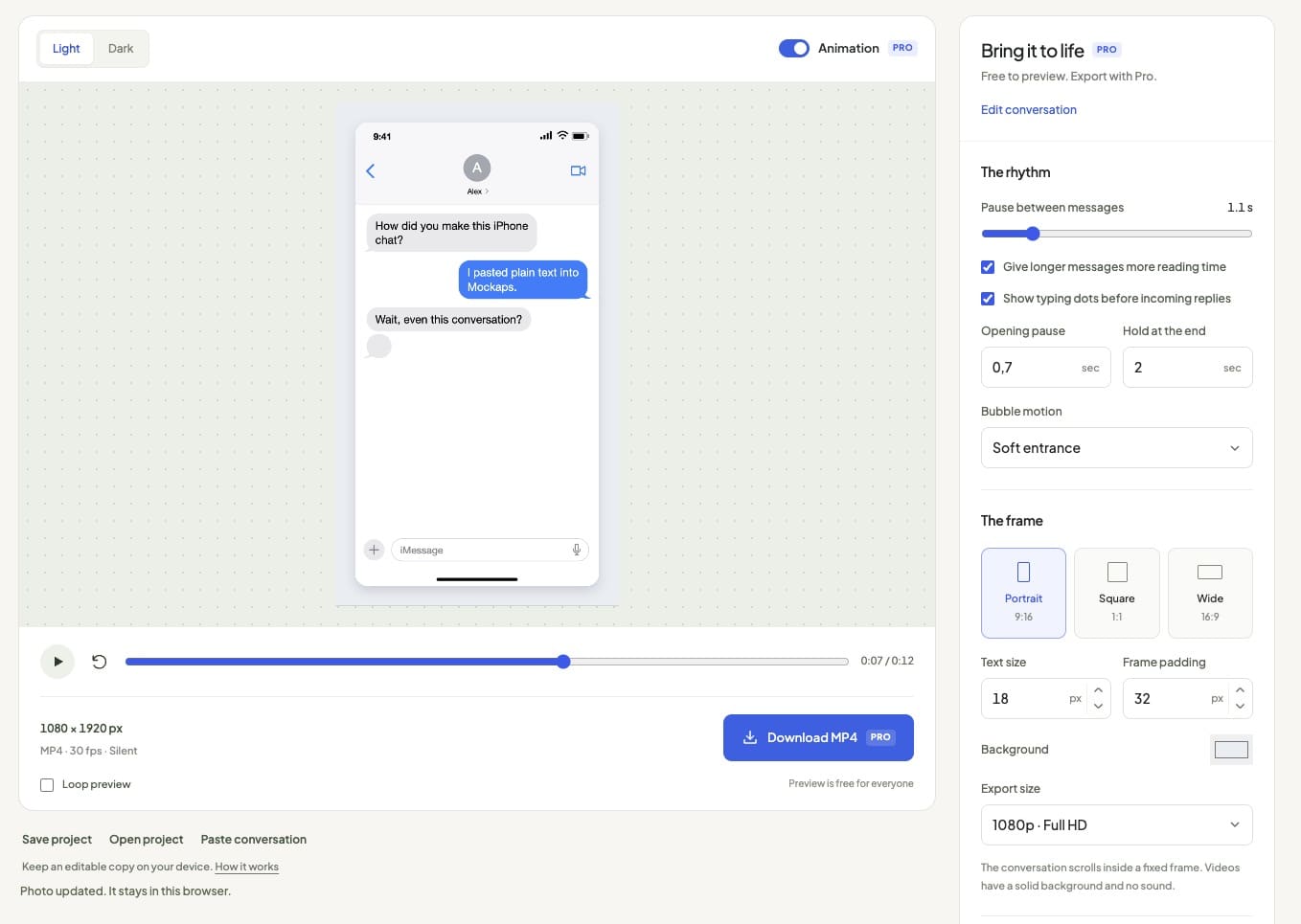
You do not need to animate each bubble yourself.
Watch the whole sequence once before adjusting it.
Can you read each message before the next one arrives?
- Pause between messages: set the general pace.
- Give longer messages more reading time: keep this on when replies vary in length.
- Show typing dots before incoming replies: add a pause while your contact appears to type.
- Fine-tune each message: add a longer pause before a particular reply.
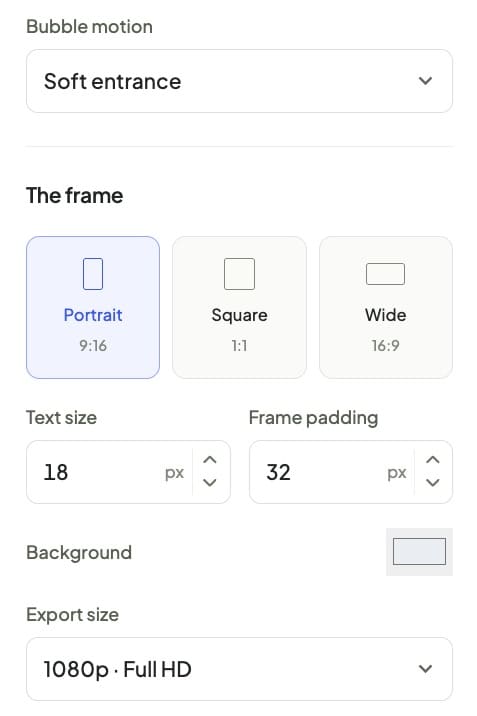
Choose Portrait, Square or Wide for your destination.
Adjust text size and frame padding so the conversation is easy to read.
To change the words or add another photo, choose Edit conversation. Then return to Animation and preview the updated chat.
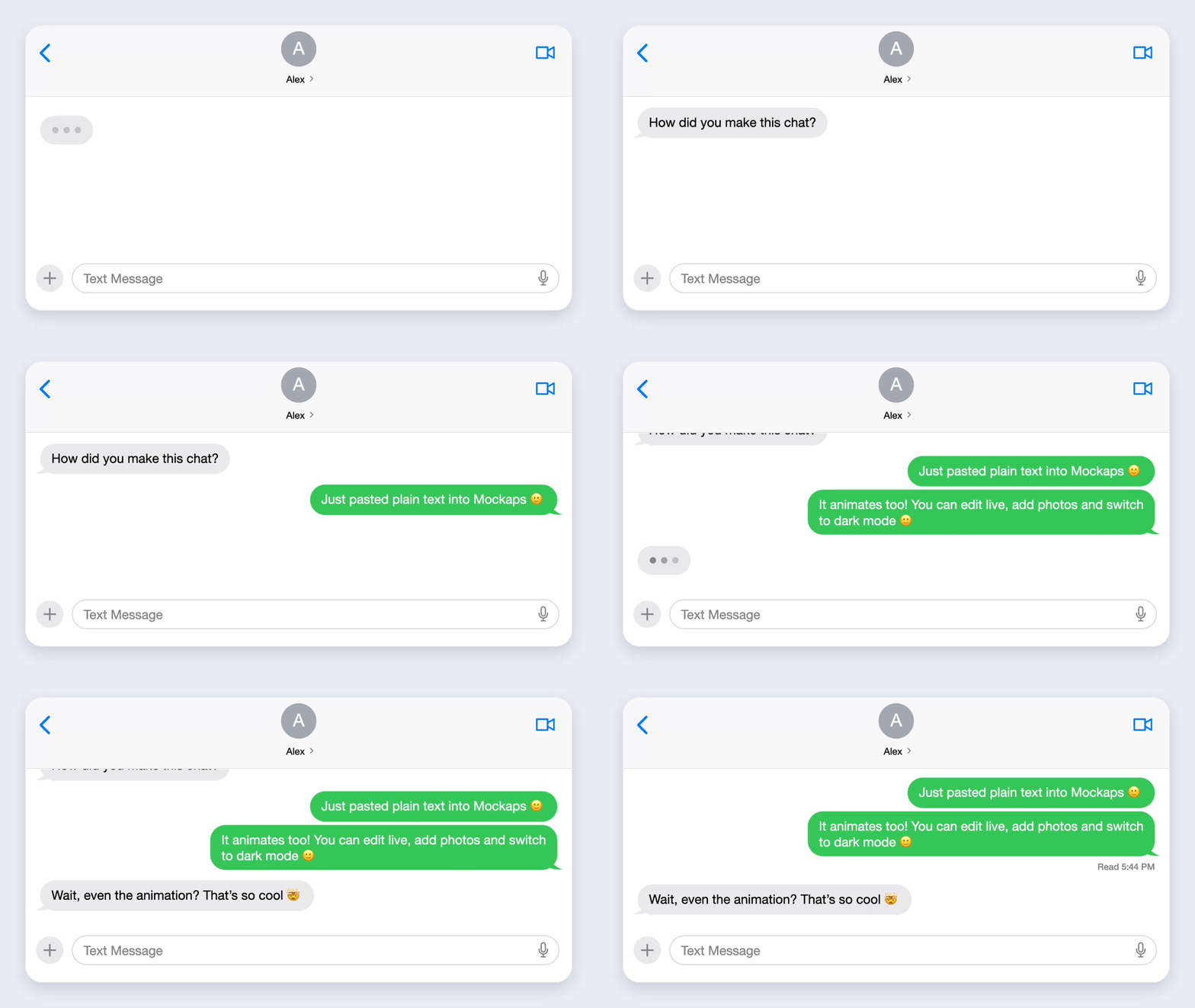
Since the video is mostly text, then the file size is really tiny already and if you need GIF, you can use Ezgif which also produces a small size gif.
6. Download the image or video
For a still image, return to the conversation editor.
Choose PNG or JPG in Canvas & export, select a download resolution and use the download button below the preview.
All three image resolutions are free and choose a transparent background with PNG if you want to place the chat in another layout.
For a video, return to Animation, choose 720p or 1080p and press Download MP4.
You’ll need active Pro access.
The video is silent, with a solid background, at 30 frames per second. Add music or a voiceover in your video editor afterward if needed.
Play the downloaded file and check the text, photo crops and pauses before sharing it.
Keep an editable copy
Choose Save project below the image download controls to keep the conversation and its settings as a project file on your device.
Use Open project in this generator when you want to continue editing.
The latest draft also saves in this browser on this device. A project file gives you a copy you can keep or move to another device.
If something needs adjusting
The text will not import
Check that each message starts with You: or the same contact name followed by a colon.
Avoid bullet points before speaker names.
Keep the conversation within 20 messages and each message within 500 characters.
The animation moves too quickly
Increase Pause between messages or add a pause before a specific reply.
Give readers time to understand a photo as well as the text.
The video is too long to export
MP4 exports can be up to three minutes long. Shorten the conversation or its pauses, then preview again.
MP4 export is unavailable
Check that you’re signed in with an active Pro plan.
Use an up to date Chrome, Edge or Safari and follow any message shown by the exporter.
You can still preview the animation and download a still image for free.
Ready to use your own words? Open the iOS Messages Mockup Generator and paste a short conversation to start.
KEEP EXPLORING
Need a hand with this guide? Ask a question ↗