
Paste your conversation.
Use Paste conversation to turn plain text into message bubbles, or start with an example. Preview the speakers before applying it.
Turn plain text into an iOS chat.
Edit messages live, add photos and animate the replies.
Preview the central 2:3 thumbnail crop. Keep key text inside the dashed area. This guide is not included in downloads.
MP4 · 30 fps · Silent
Keep an editable copy on your device. How it works
A FEW WAYS TO MAKE IT YOURS
A weekend plan. A little good news. A first look at something new. Start with a conversation below, then write it your way.
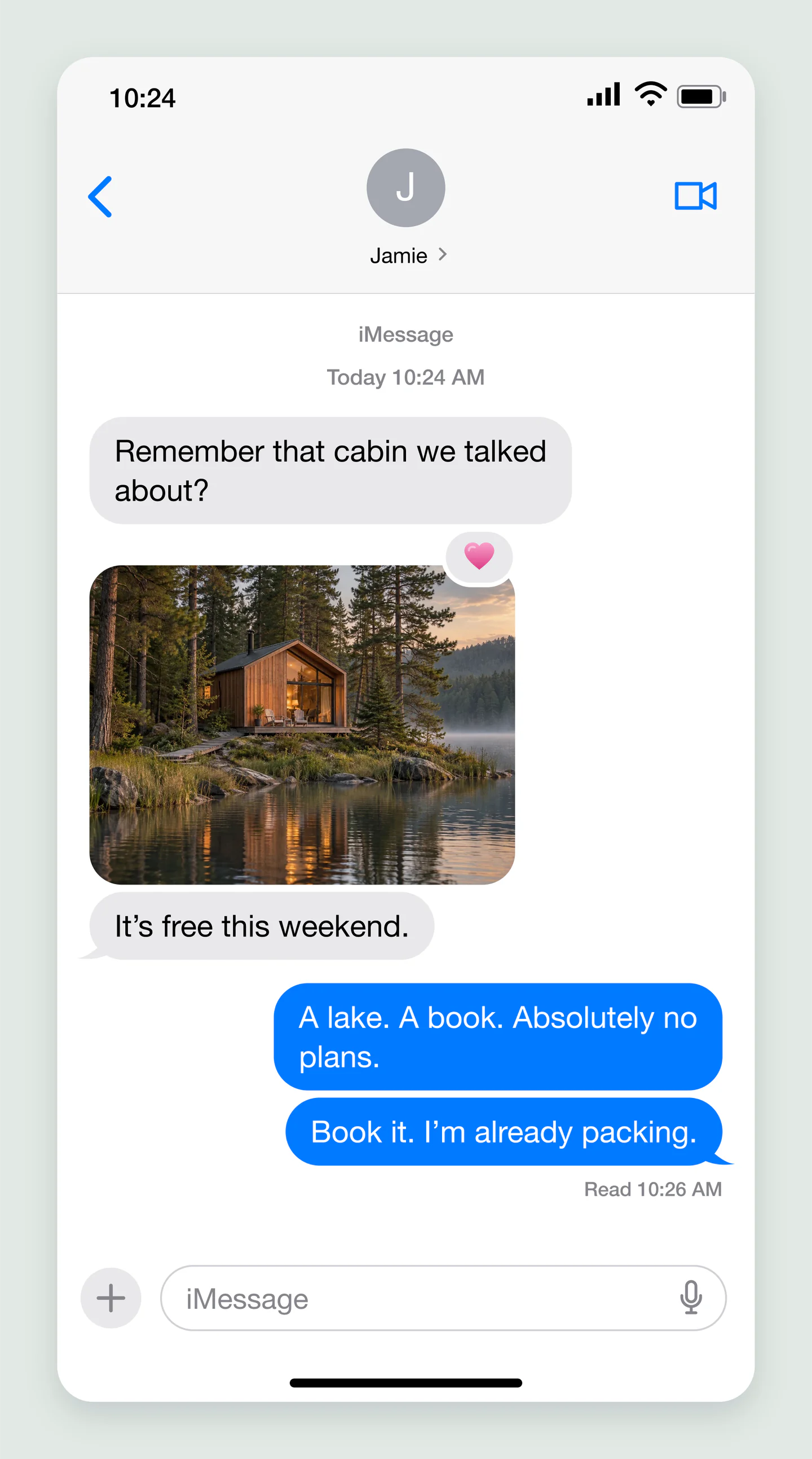
Mobile · iMessage · Photos
A little cabin, a quiet lake and a plan coming together. Start with blue iMessage bubbles, a photo and a classic Love reaction.
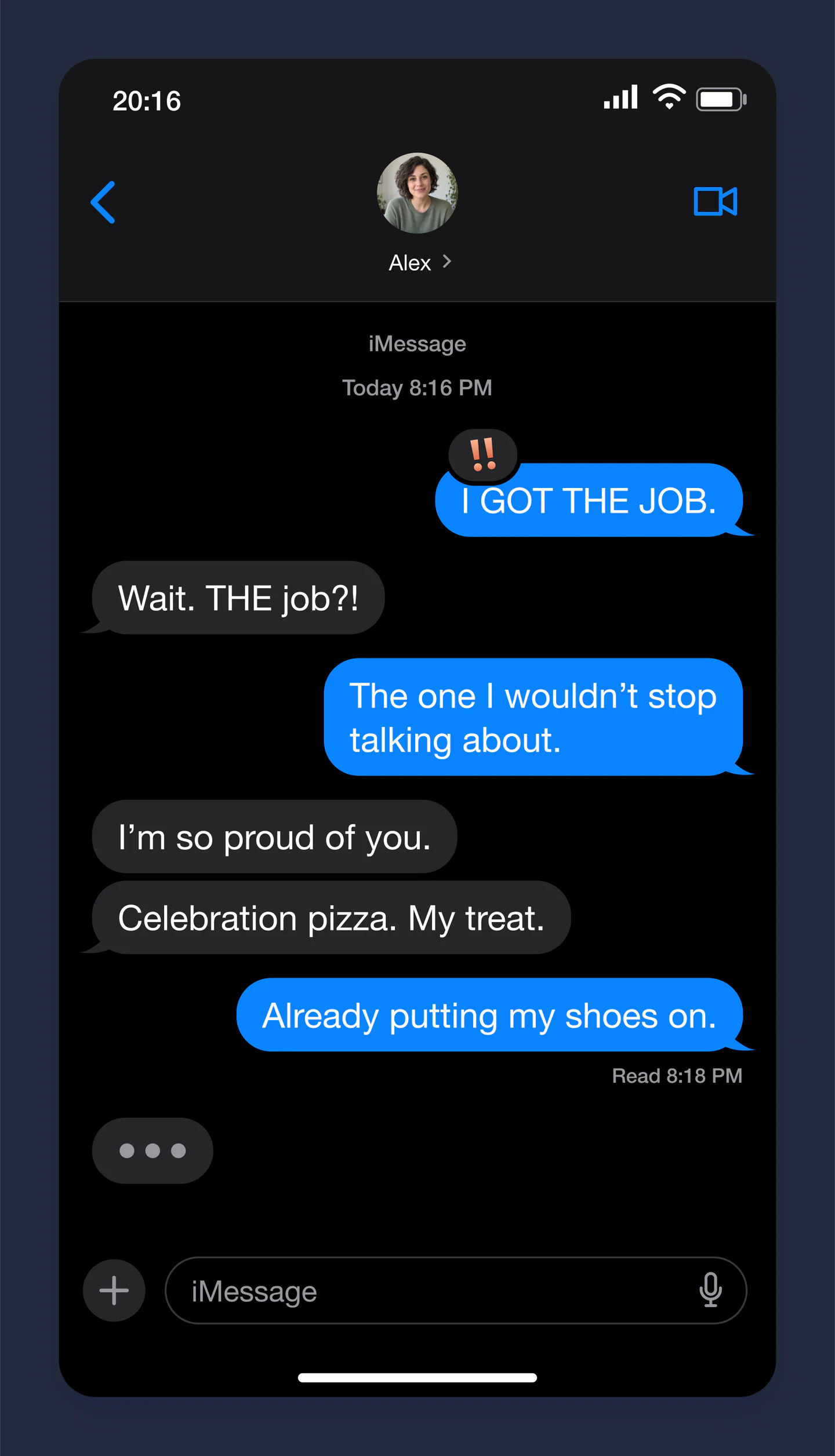
Mobile · Dark · Tapbacks
Keep the words big and the moment simple. A dark iMessage conversation with an excited reply, a tapback and someone still typing.
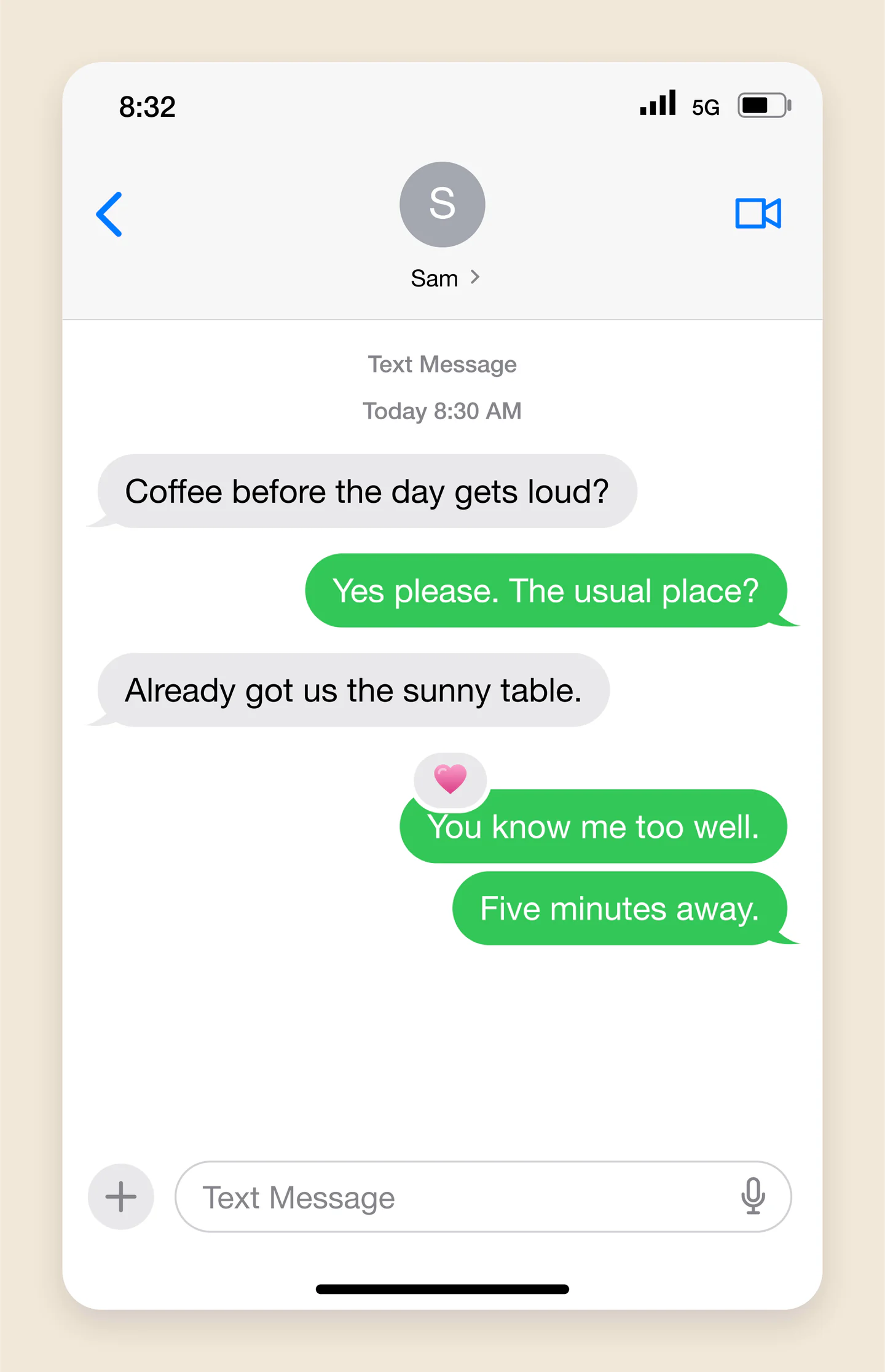
Mobile · Green bubbles · Text only
Make a casual catch-up feel familiar with green text-message bubbles. Edit the contact, timing and both sides of the conversation.
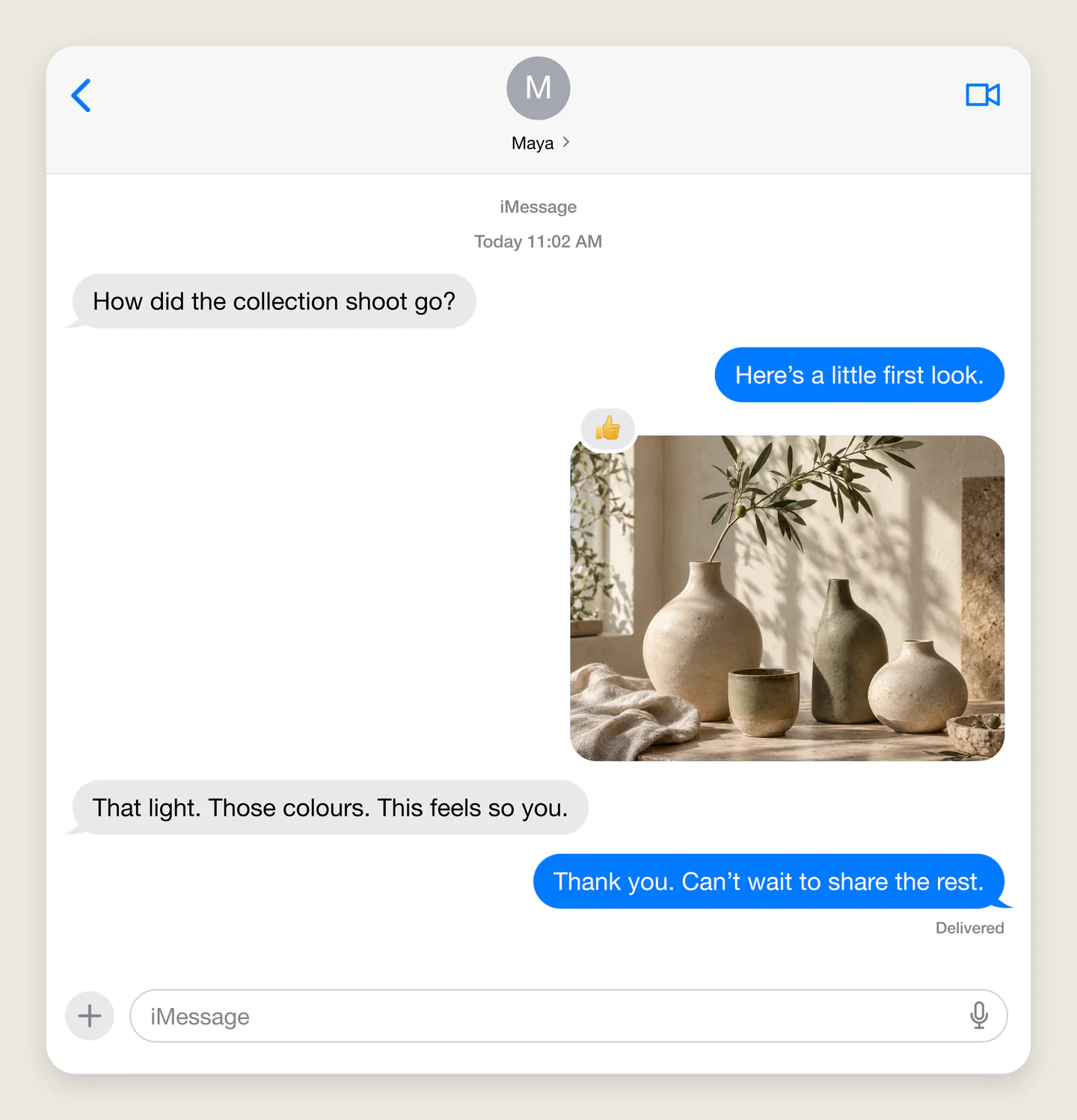
Wide · Light · Creative preview
A wider conversation for a presentation or campaign. Share a first look at a collection, then change the photo and feedback to tell your own story.
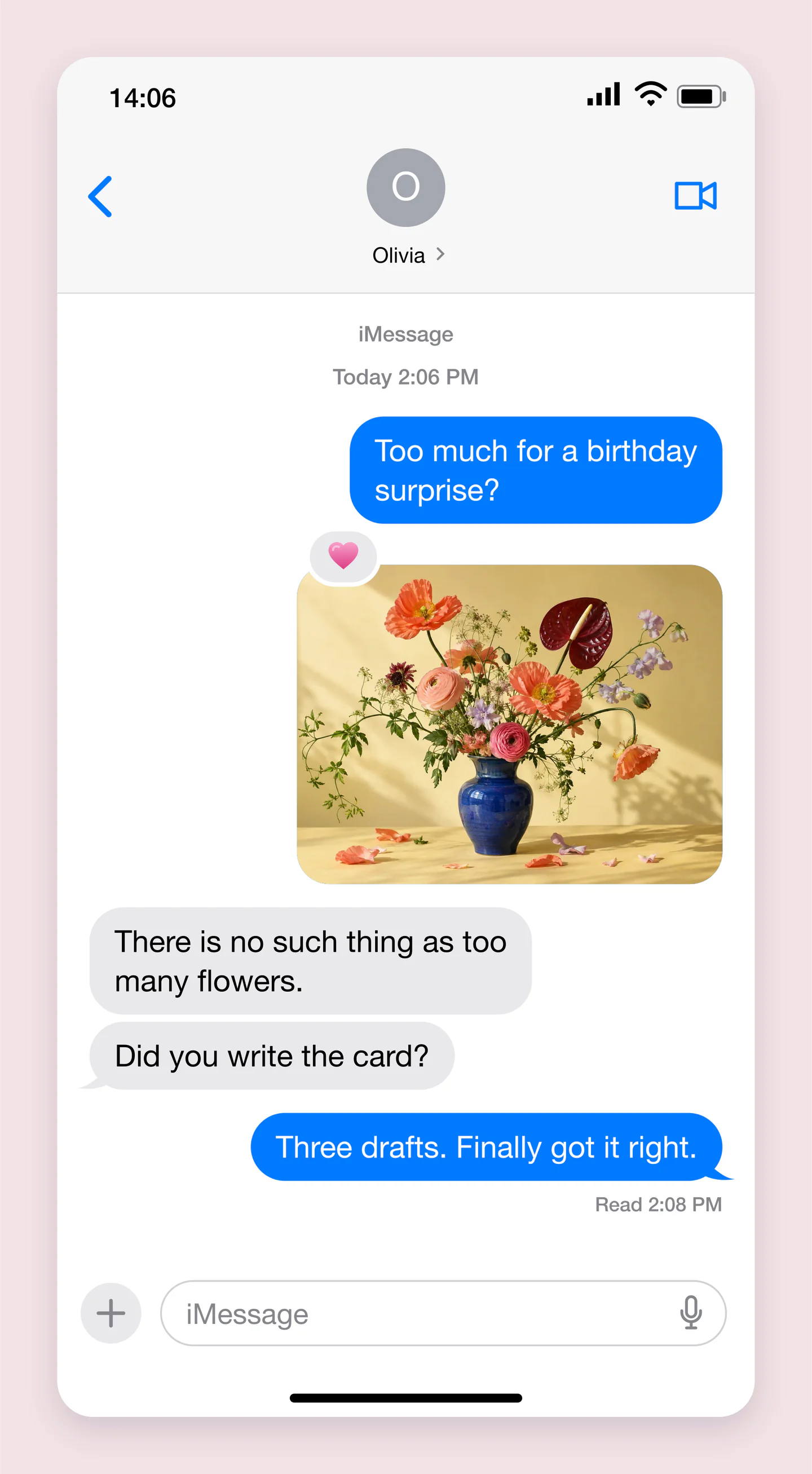
Mobile · Light · Photo conversation
Plan a birthday surprise with a bouquet photo and a few warm words. Replace the photo, adjust its crop and make the conversation yours.
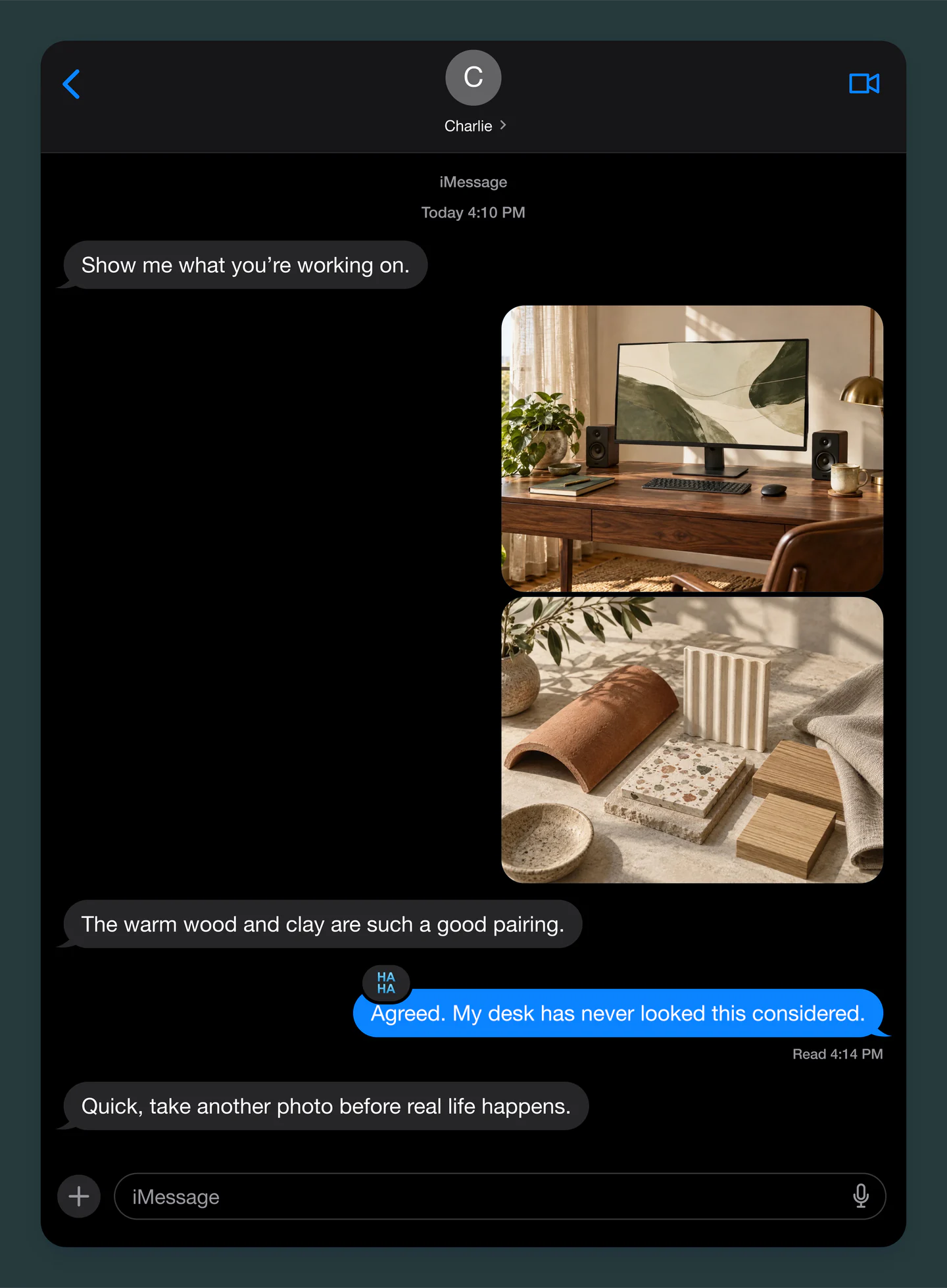
Wide · Dark · Two photos
Bring two independent photos into a dark conversation. A starting point for creative feedback, with a classic Ha ha tapback and a read receipt.
Made with this generator. Sample brands, conversations and engagement counts are fictional.
LET THE CONVERSATION BEGIN
Use Paste conversation to turn plain text into message bubbles, or start with an example. Preview the speakers before applying it.
Click a bubble to change its text live. Add photos and reactions, then choose blue or green bubbles and light or dark mode.
Turn on Animation to play messages automatically with optional typing dots. Download PNG or JPG images free, or export an MP4 with Pro.
A FEW USEFUL DETAILS
Yes. Save project downloads an editable file with your settings, text and uploaded images. Open project restores it in the same tool, or lets you paste project JSON from an assistant. Review it before replacing your draft. Files are processed in your browser, not uploaded to your account.
Yes. Images exported from these social and app mockup tools can be used in personal projects, social posts, presentations and client work without a Mockaps subscription or attribution. You still need permission for content you add. Platform names and logos belong to their owners; a mockup does not imply their endorsement.
Yes. Customize your conversation and download PNG or JPG images at 1×, 2× or 3× for free, without an account or watermark. You can also preview message animations for free. Downloading an animated MP4 requires Pro.
Yes. Choose Paste conversation below the download button. Start each message with You: or the other person’s name, such as Alex:. Choose Preview conversation to check the speakers, then Use conversation to turn the text into editable message bubbles. You can import up to 20 messages and add photos afterward.
Yes. Turn on Animation above the preview and press Play. Messages appear automatically in order, with optional typing dots and natural scrolling. Adjust the pace, set pauses before individual replies, or choose a portrait, square or wide frame. Previewing is free. Pro exports a silent H.264 MP4 at 30 fps in 720p or 1080p. Videos can be up to three minutes long. Use an up-to-date Chrome, Edge or Safari for MP4 export.
Change the contact name and photo, write both sides of the conversation, and add up to 20 text or photo messages. Choose blue or green bubbles, tapback reactions, timestamps, a read receipt and a typing indicator. You can also adjust the message font size, phone time, battery, connection and input bar.
Yes. Use Conversation style at the top of the sidebar. Choose iMessage for blue outgoing bubbles or Text message for green ones. Incoming messages use the familiar gray bubbles. Both styles work in light and dark mode.
Yes. Click a text bubble to type in it. The + buttons on the left add messages from your contact; the ones on the right add yours. Use the bar above the image to add photos, choose a colored reaction or delete a message. Clear chat gives you a blank conversation, with an option to undo.
Yes. Select a message and choose Add photo above the preview, or choose + Photo inside Messages & photos. Each photo has its own upload and zoom controls. Drag the photo to position it. PNG, JPG and WebP files up to 8 MB are resized in your browser and embedded in the final download.
Choose Use this example from the gallery below. Confirm to load the messages, photos, colors and screen settings into the editor. You can restore your previous draft from the examples section until you reload the page.
Yes. Screen appearance includes a message font-size control from 14 to 24 pixels. Bubbles wrap and the conversation grows to fit. For a wider presentation layout, choose Wide above the preview. Very long conversations may require a lower export resolution.
Your latest draft is saved in this browser on this device, separately from the other mockup tools. It is not saved to your account. Large photo-heavy drafts may exceed browser storage; the editor will tell you if it cannot save.
This tool uses the familiar, classic iOS Messages style rather than a specific current iOS release. It creates images and animated conversation videos for stories, campaign concepts and presentations. It does not send real messages or connect to an Apple account.
An independent tool by Mockaps. iPhone and iMessage are trademarks of Apple Inc. This tool is not affiliated with or endorsed by Apple.