
Shorts guide · Opening hook
Make the first seconds count
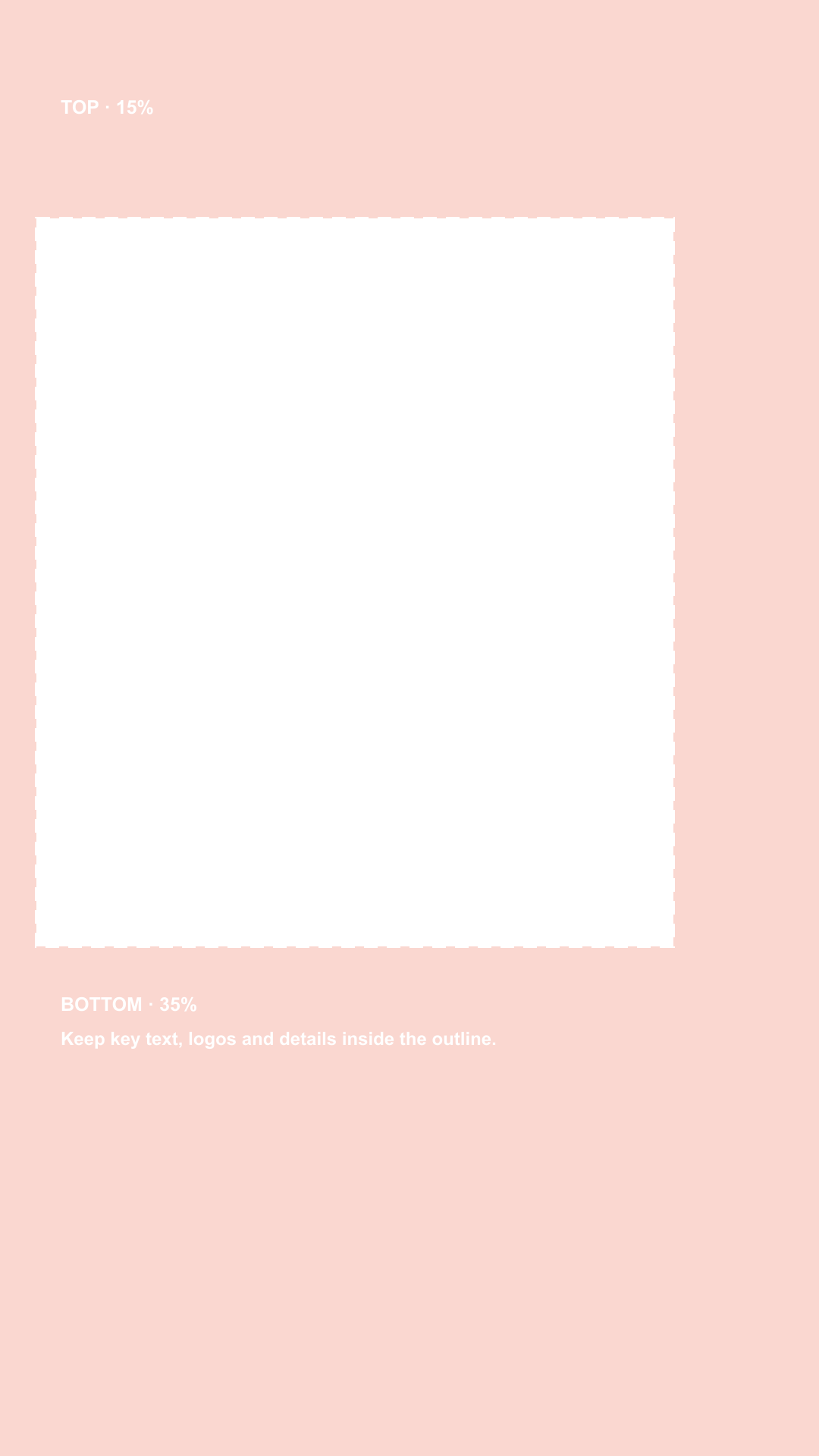
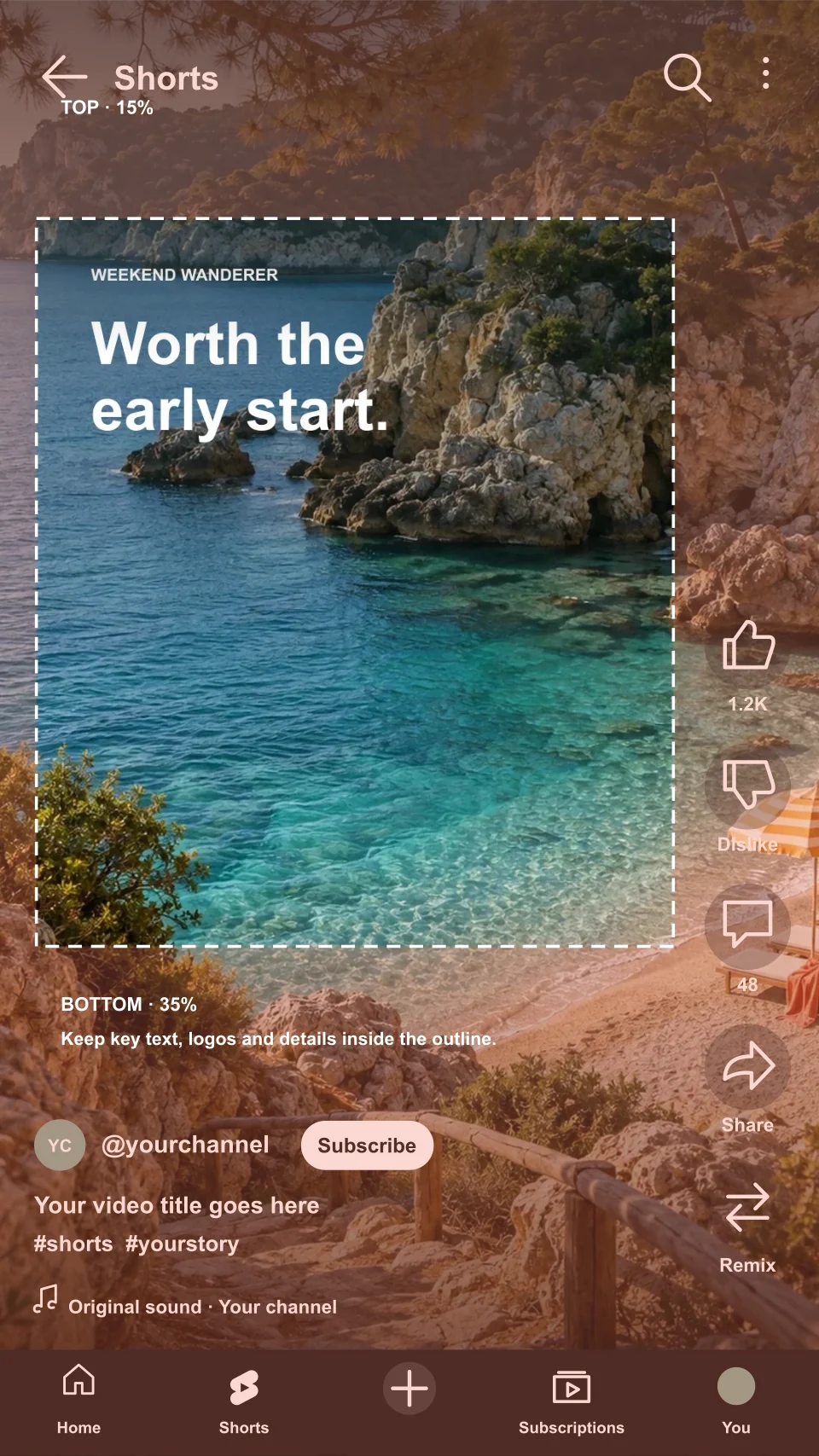
Keep your hook away from the top controls and action buttons. Check the whole clip, not just the opening frame.
Keep the good part in view.
Give your hook, captions and channel room.

Keep the important
parts inside the outline.
At 1080 × 1920. Preview overlays are not an exact live YouTube interface.
CHECK THE DETAILS THAT MATTER
Try a guide below. If you have already added a video, it stays in place while the guide changes.
Keep your hook away from the top controls and action buttons. Check the whole clip, not just the opening frame.
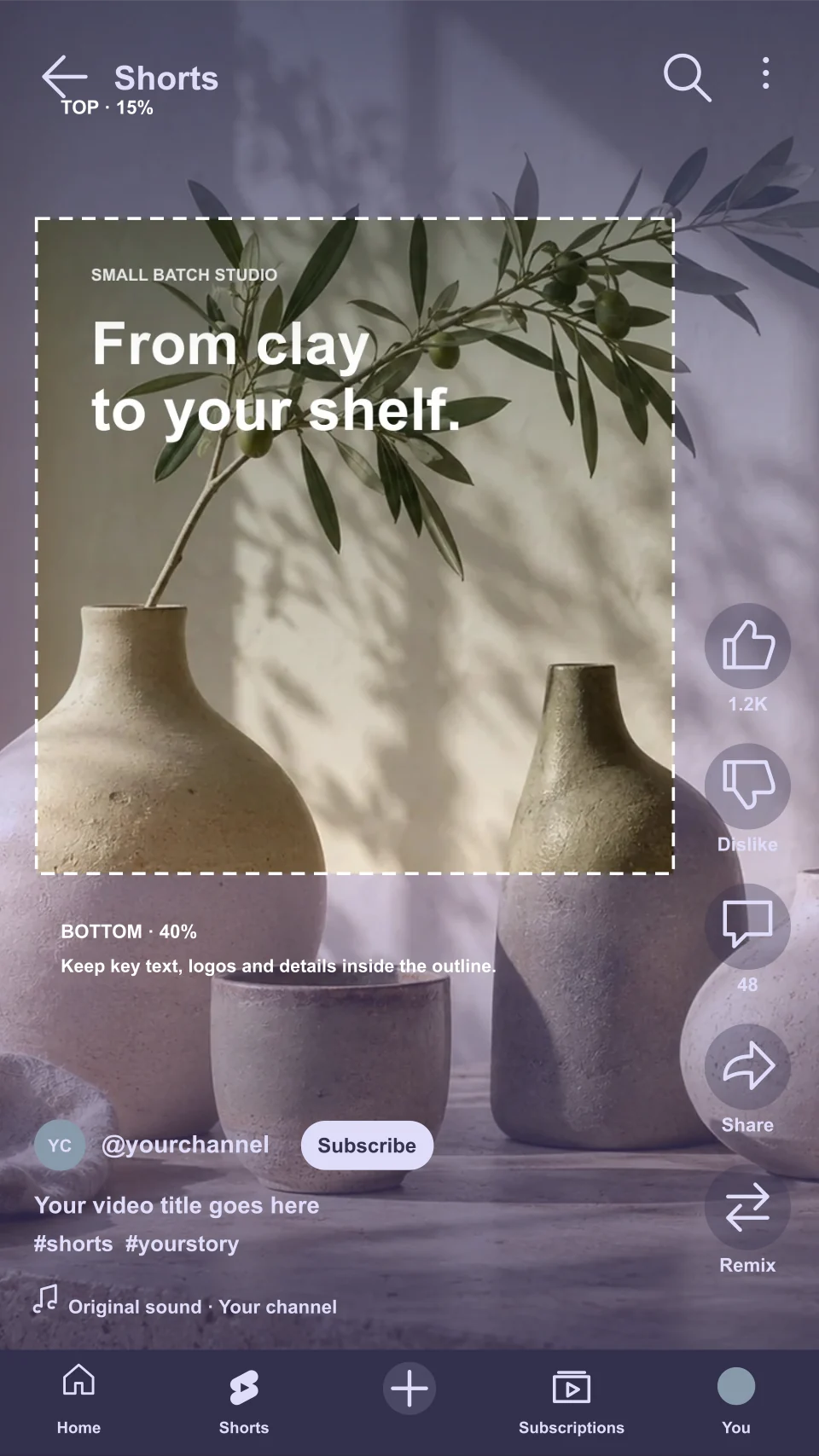
Give the channel name, video title and audio details more breathing room. Try the extra-bottom-room guide with your own video.
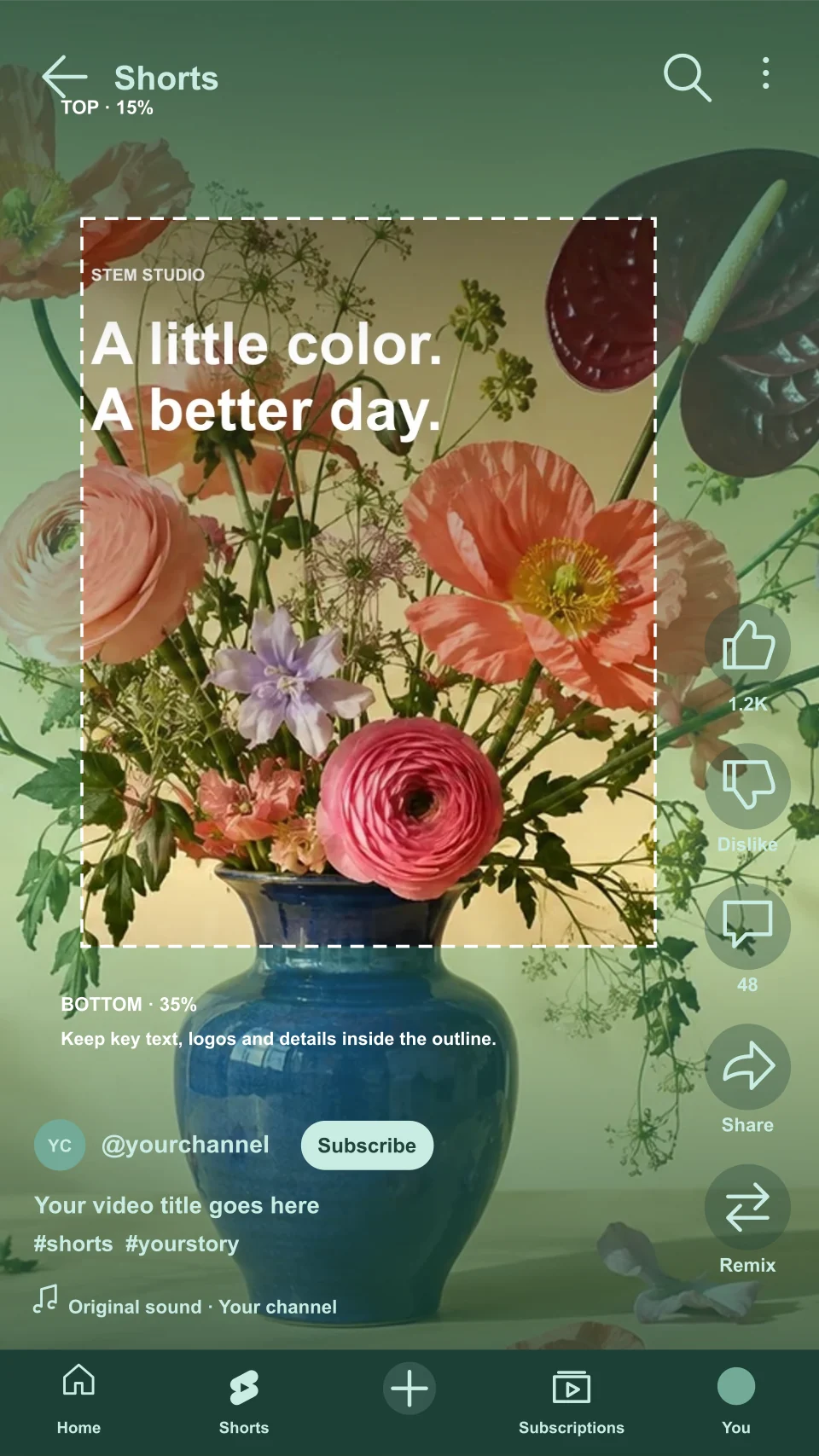
A wider left margin makes room around longer text. Scrub through your captions and check the final line of each subtitle.
BEFORE YOU POST
Drop in your YouTube Short. Watch the hook, scrub through subtitles and pause on the end card.
Keep your key message inside the outline. Try the interface preview, or adjust the guide for your placement.
Download the transparent PNG for CapCut, Canva, Premiere Pro or another editor. Remove the guide layer before exporting your finished Short.
Shorts puts its like, comment and share controls down the right edge. Keep your important text clear of that column, and leave room below for the channel name and video title.
The default follows Google’s vertical video ad guide: 288 px at the top, 672 px at the bottom, 48 px on the left and 192 px on the right, on a 1080 × 1920 canvas. You can adjust every margin.
This is a conservative starting point based on ad guidance, not a promise for every organic Short. Controls vary across devices and placements. See Google’s vertical video safe-zone guidance and its universal video ad guide.
Posting to Facebook too? Check your Reel →A FEW USEFUL DETAILS
It is the part of a vertical video where you plan to keep important text, logos and details clear of the app interface. The channel name, title, audio details and action buttons can cover parts of your Short. Ads may add a call to action. This checker places an adjustable guide over your video so you can inspect it before posting.
Choose a video or drop it into the preview. Play it, pause on important moments and drag the timeline to inspect captions, logos and end cards. Toggle the illustrative YouTube interface or hide the guide to compare. The checker helps you inspect placement; it does not automatically detect text or approve an ad.
The default uses Google’s vertical video ad guide: 288 px above, 672 px below, 48 px on the left and 192 px on the right of a 1080 × 1920 frame. That leaves an 840 × 960 px clear area. These are editable planning margins, not a guarantee for every device or placement. The guide comes from ad guidance; it is not an exact map of every organic Short.
Yes, for free and without an account. Download the overlay at 1080 × 1920, 1440 × 2560 or 2160 × 3840. Its center is transparent and the shaded margins remain visible. The PNG contains the guide only, not your video or the illustrative YouTube interface. You can download it before choosing a video.
Import the PNG and place it above your video as a guide layer. Match the overlay to your full 9:16 canvas without cropping or stretching it. Keep essential captions, logos and calls to action inside the outline. Hide or delete the guide layer before exporting your finished video.
No. Captions, controls, calls to action and cropping can vary by device, app version and placement. The interface preview is an illustration. Use the extra-bottom-room preset or adjust the margins, then check the final preview in YouTube or Google Ads.
Start inside the clear area, leaving breathing room around the outline. Scrub the whole video, including the opening hook and final frame. Long subtitles may wrap onto an extra line, and a moving logo can cross a boundary even if the first frame looks fine.
No. Files you choose are opened locally in this browser tab. The tool does not send your video to a server. Your overlay preferences can be remembered on this device, but your video is not stored in your account or included in the PNG guide.
Choose an MP4, WebM or MOV that your browser can play. MP4 with H.264 video is a useful fallback if a file does not open. You can also check a PNG, JPG or WebP still image. A non-vertical file can be shown in full or cropped to fill the 9:16 preview.
Yes. Pause on the frame you want and choose Save preview frame. That PNG includes the visible video frame or image and whichever preview overlays you have enabled. It is separate from Download overlay PNG, which always gives you the transparent guide only. This tool does not export an edited video.
An independent tool by Mockaps. YouTube and Shorts belong to Google. This tool is not affiliated with or endorsed by Google.