
Set the scene.
Add your contact’s name and photo. Pick a chat color and the mobile or desktop view.
A conversation worth showing.
Your words, on both sides of the chat.
MP4 · 30 fps · Silent
Keep an editable copy on your device. How it works
A FEW WAYS TO MAKE IT YOURS
A little first look, a weekend plan, a conversation around your work. Try mobile, desktop and dark chats with different colours and photos. Load an example and write both sides.
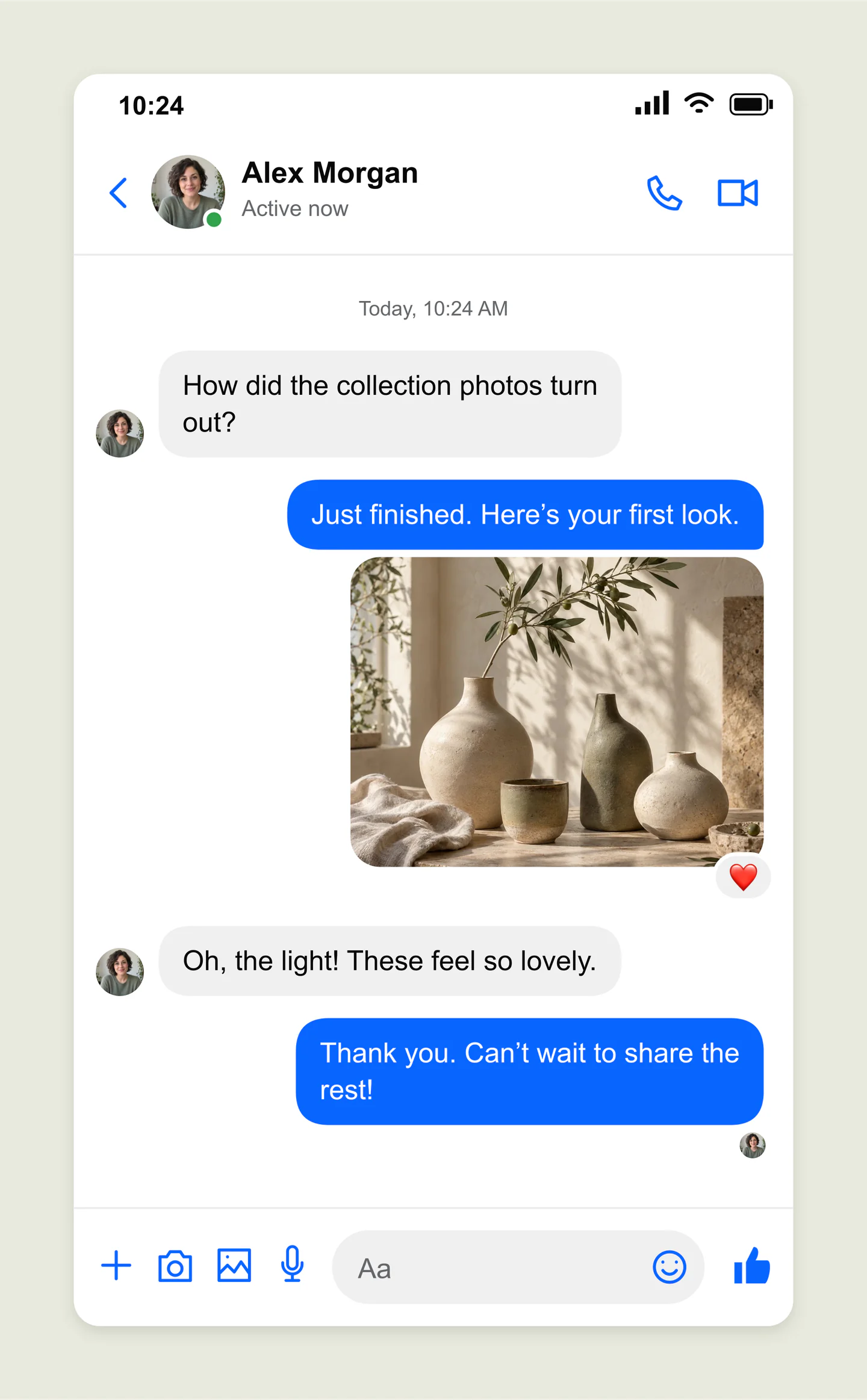
Mobile · Light · Creative preview
A mobile Messenger conversation with a ceramics photo, blue chat bubbles and a heart reaction. Preview the small exchange that introduces your next collection.
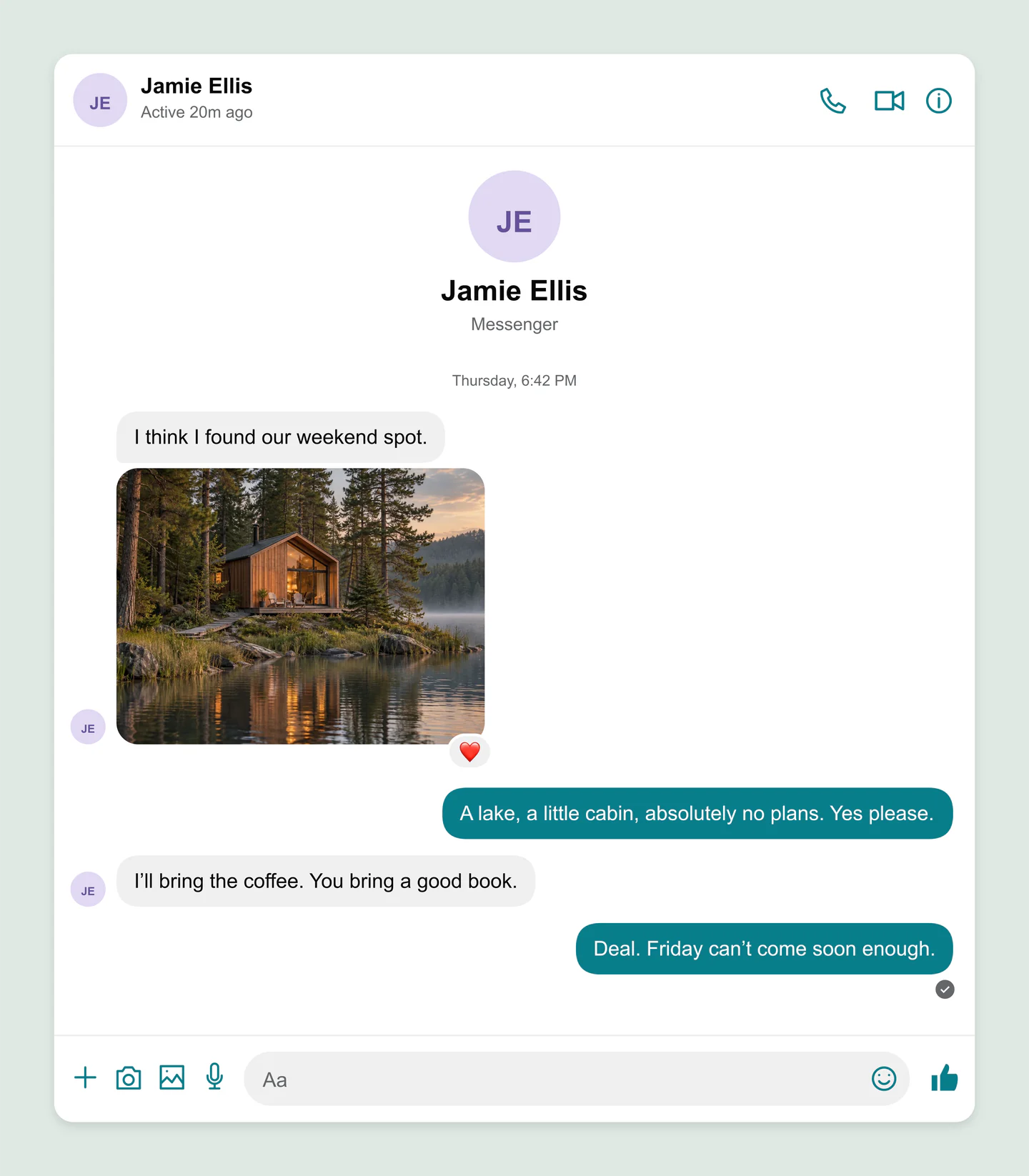
Desktop · Light · Weekend plans
A desktop Messenger chat with a lakeside cabin photo, teal bubbles and a profile introduction. Try a relaxed travel conversation with a delivered receipt.
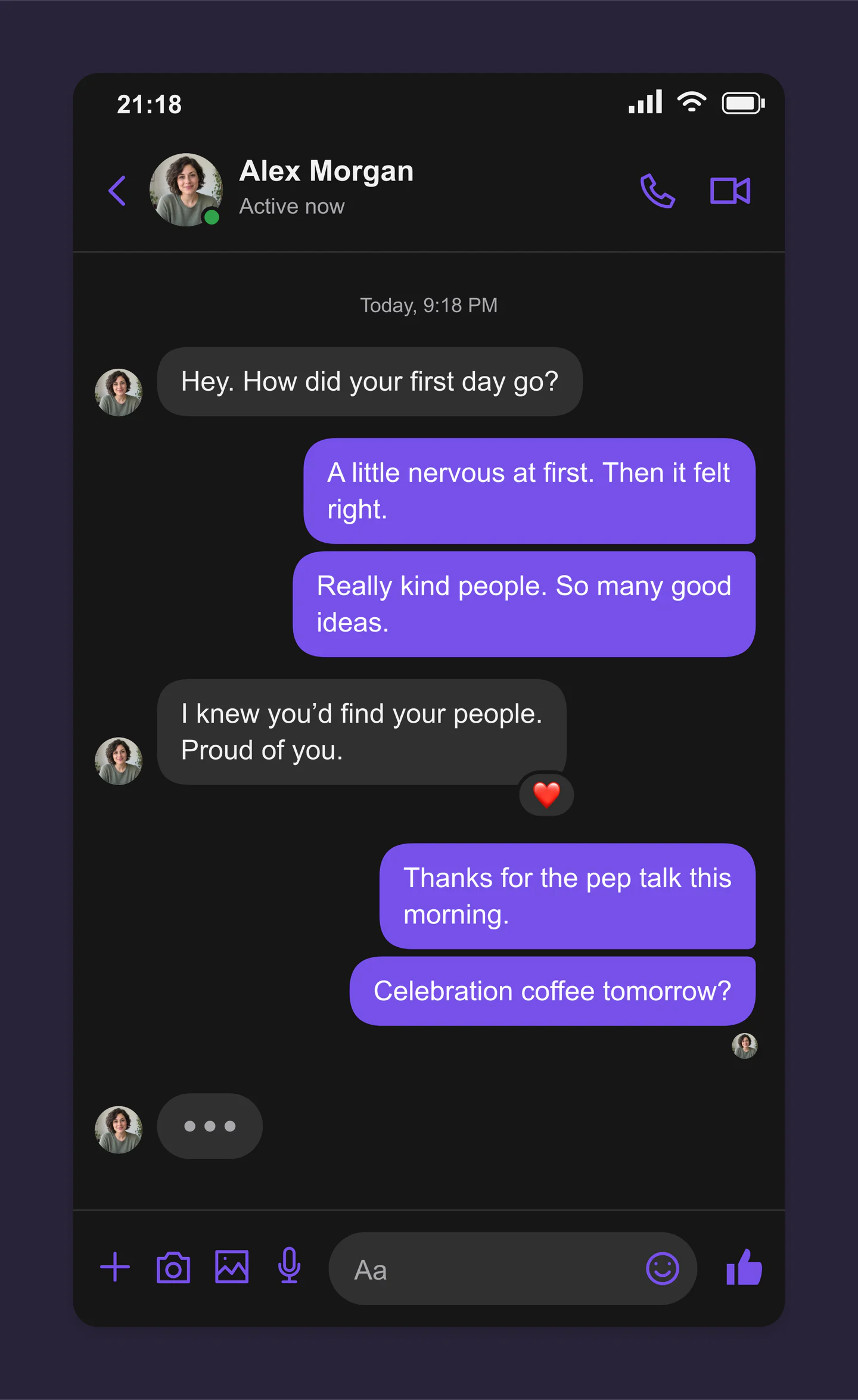
Mobile · Dark · Evening check-in
A text-only Messenger conversation in dark mode, with purple bubbles, a heart reaction and a typing indicator. A simple starting point for a story told through messages.
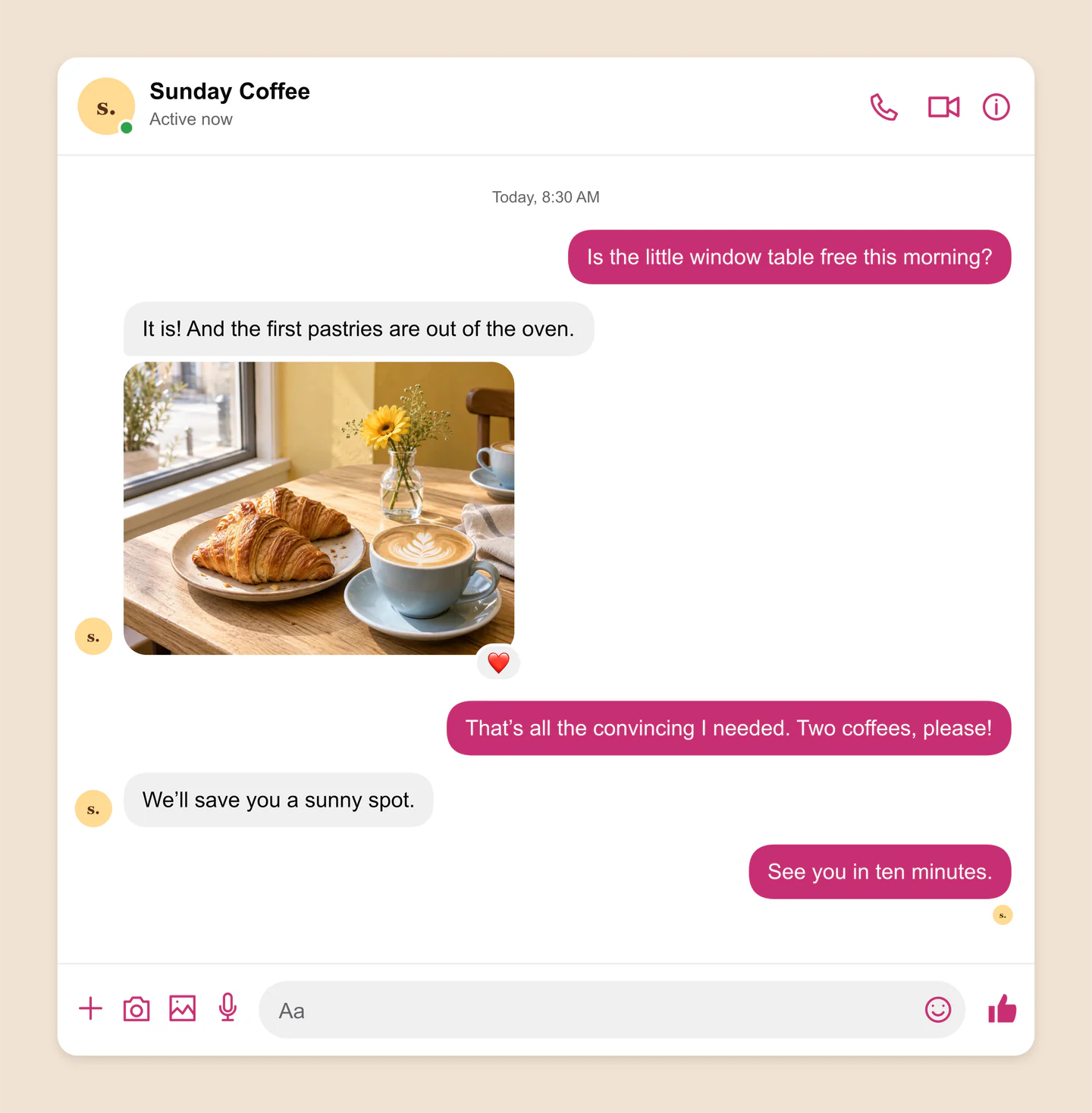
Desktop · Light · Café invitation
A desktop Messenger café conversation with a warm bakery photo, rose chat color and message reactions. Show how a friendly invitation could look in context.
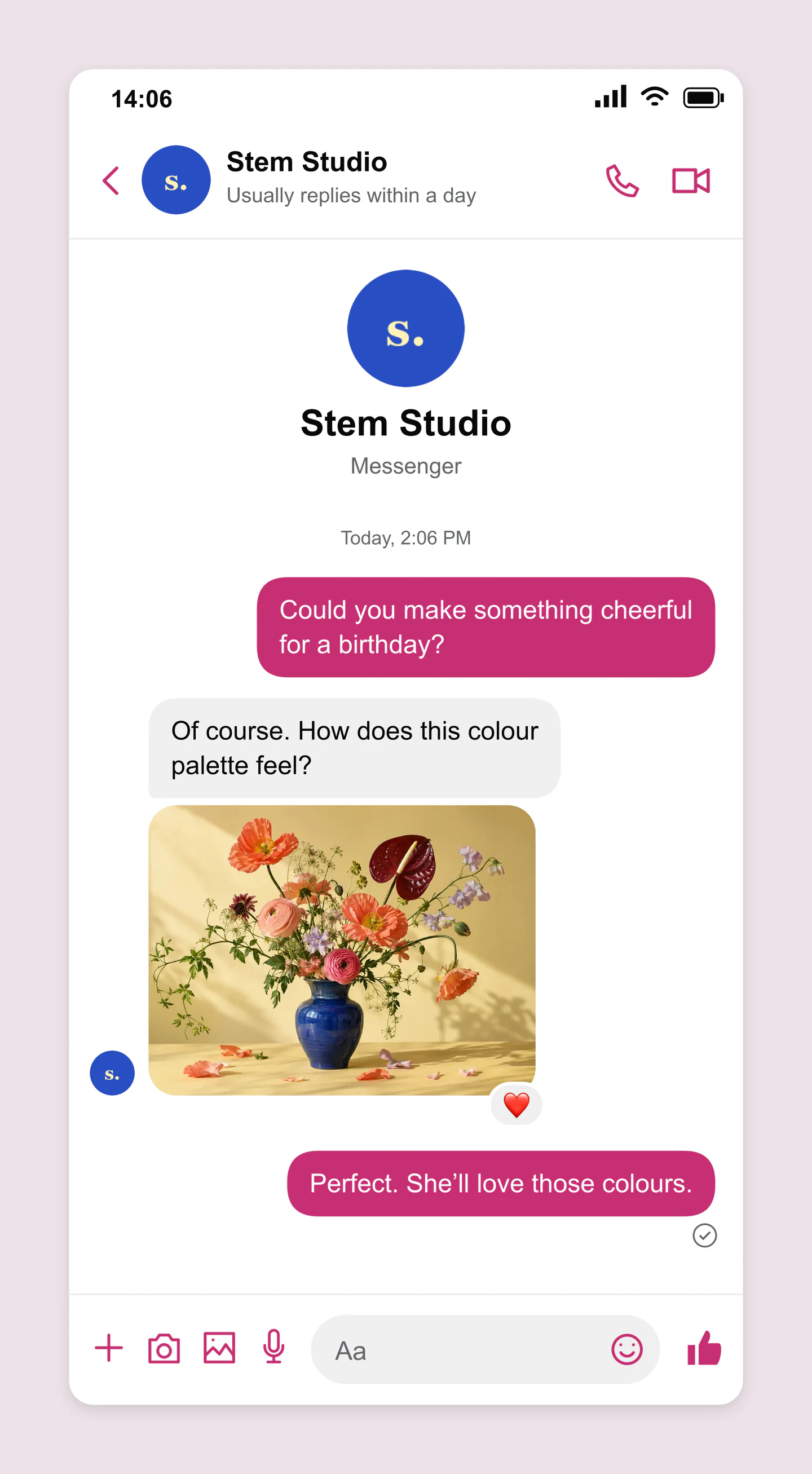
Mobile · Light · Flower order
A mobile Messenger conversation with a floral studio, a bouquet photo and a sent receipt. Try a friendly small-business exchange with a custom chat color.
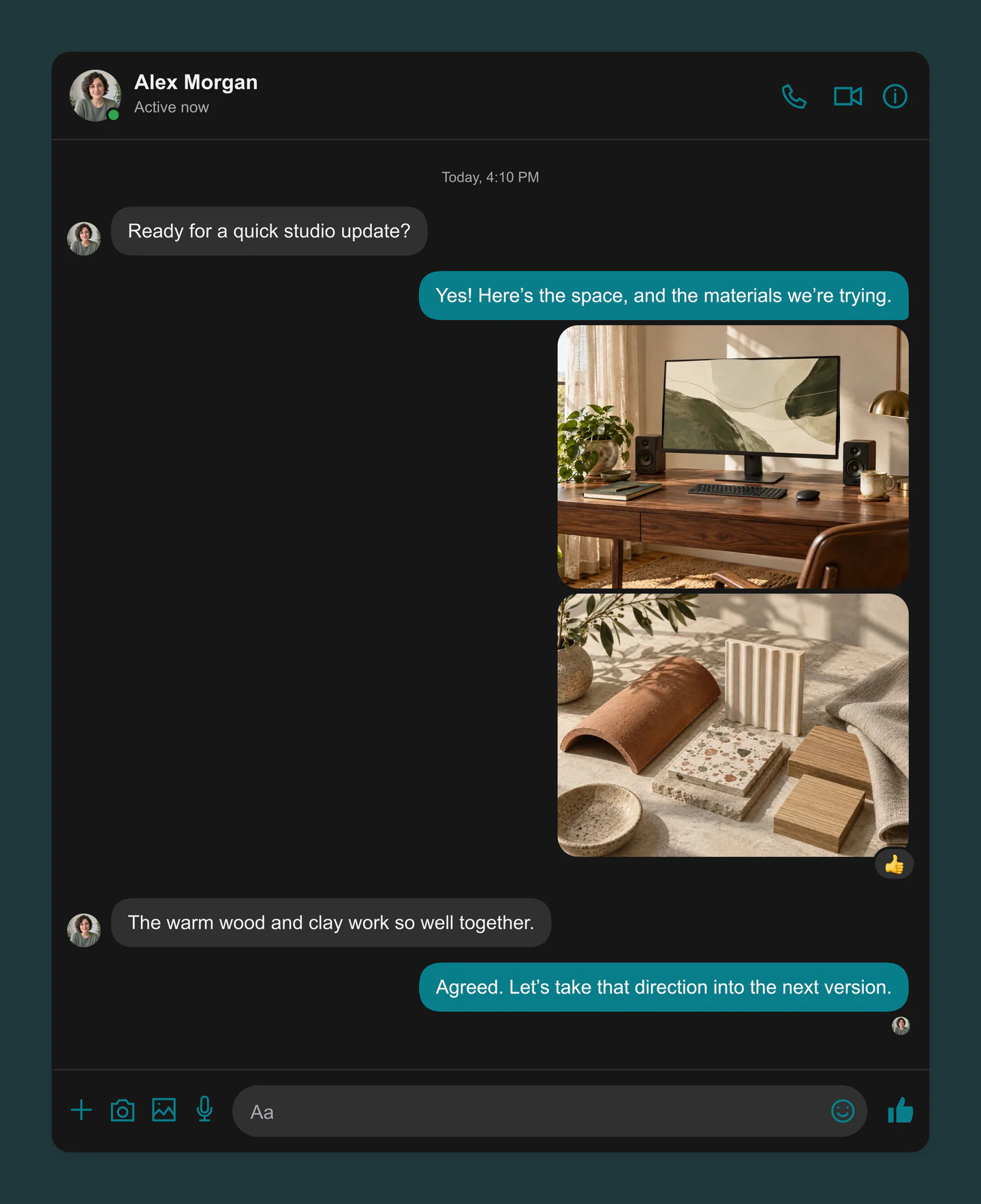
Desktop · Dark · Two-photo feedback
A dark desktop Messenger design review with two separately editable photos, teal bubbles and a reply. Load the workspace and materials together, then replace either image.
Made with this generator. Sample brands, conversations and engagement counts are fictional.
LET THE CONVERSATION BEGIN
Add your contact’s name and photo. Pick a chat color and the mobile or desktop view.
Build the conversation one message at a time. Add a photo, a reaction, or a pause while someone is typing.
Download a standard PNG or JPG for free. Choose 1×, 2× or 3× for your next presentation, all free.
A FEW USEFUL DETAILS
Yes. Save project downloads an editable file with your settings, text and uploaded images. Open project restores it in the same tool, or lets you paste project JSON from an assistant. Review it before replacing your draft. Files are processed in your browser, not uploaded to your account.
Yes. Images exported from these social and app mockup tools can be used in personal projects, social posts, presentations and client work without a Mockaps subscription or attribution. You still need permission for content you add. Platform names and logos belong to their owners; a mockup does not imply their endorsement.
Add your contact’s name, photo and activity status. Write both sides of the conversation, reorder messages, add timestamps and reactions, and include photos. You can also change the chat color, read receipt, typing indicator and input bar.
Yes. All current editing features and PNG or JPG downloads at 1×, 2× and 3× are free. No account, subscription or watermark. The download controls show the exact pixel dimensions for your design. Very large designs may need a smaller size to fit your browser’s image limits.
Yes. Turn on Animation to preview messages arriving automatically, with typing dots, gentle bubble motion and delayed reactions. Adjust the rhythm, pauses for individual messages, text size and frame. Longer conversations scroll inside a fixed chat window. Previewing is free; downloading the animation requires Pro.
A silent MP4 video at 30 frames per second, in 720p or 1080p. Choose portrait (9:16), square (1:1) or wide (16:9). Reactions appear shortly after their messages, and the final delivery or seen receipt appears at the end. Static PNG and JPG downloads remain free.
Yes. Use the + buttons below the preview to add messages from either person. Select a bubble to edit it, remove it, add a photo, or insert a message after it. You can also reorder messages in the sidebar, clear the whole chat and undo a removal. Add up to 20 messages; leave timestamps blank to hide them. Longer conversations grow to fit the messages; very large exports may need fewer messages or a lower resolution.
Yes. Select a message in the preview and choose Add photo, or Replace photo for an existing image. Upload or replace a PNG, JPG or WebP up to 8 MB directly inside that message, then adjust its crop and zoom. Each photo is independent, and the conversation can contain up to 20 text or photo messages. Photos are resized in your browser and embedded in the download.
Select a message and choose an emoji in the toolbar above the preview. The same picker is available in each sidebar message. Click the active reaction again to remove it. Editing controls stay outside your downloaded image.
Yes. Mobile is the default. Switch to a wider desktop chat panel, try light or dark mode, and choose a chat color. Canvas controls let you set the background, spacing and shadow, or export with a transparent PNG canvas.
Your latest Messenger draft, including resized images, saves in this browser on this device. It stays separate from your other app mockups and is not saved to your account. Clearing site data removes the draft.
No. This creates images and animations for stories, campaign concepts and presentations. It does not connect to Messenger, contact anyone, or create a real conversation.
This tool recreates a familiar one-to-one Messenger conversation. The live interface can vary by device, region and update. Use the mockup as a visual preview and check your final presentation in context.
Yes. Choose Use this example below the editor to load its conversation, profile, photos, reactions and chat appearance. Each photo message can be replaced and cropped separately. You will be asked before your local Messenger draft is replaced, and you can restore the previous draft until you reload the page. Your other tools’ drafts stay separate.
An independent tool by Mockaps. Messenger is a trademark of Meta Platforms, Inc. This tool is not affiliated with or endorsed by Meta.