
Bring the useful part.
Paste a short snippet or open a text file. Pick its language and keep the whitespace that makes it readable.
Code editor mockups for your next post.
Paste a snippet. Find a style. Share the idea.
Click the code image to edit. The preview updates as you type.
MP4 · 30 fps · Silent
Keep an editable copy on your device. How it works
A FEW WAYS TO MAKE IT YOURS
A little JavaScript, a useful Python function, a first commit. Choose a starting point and replace the code with something of your own.
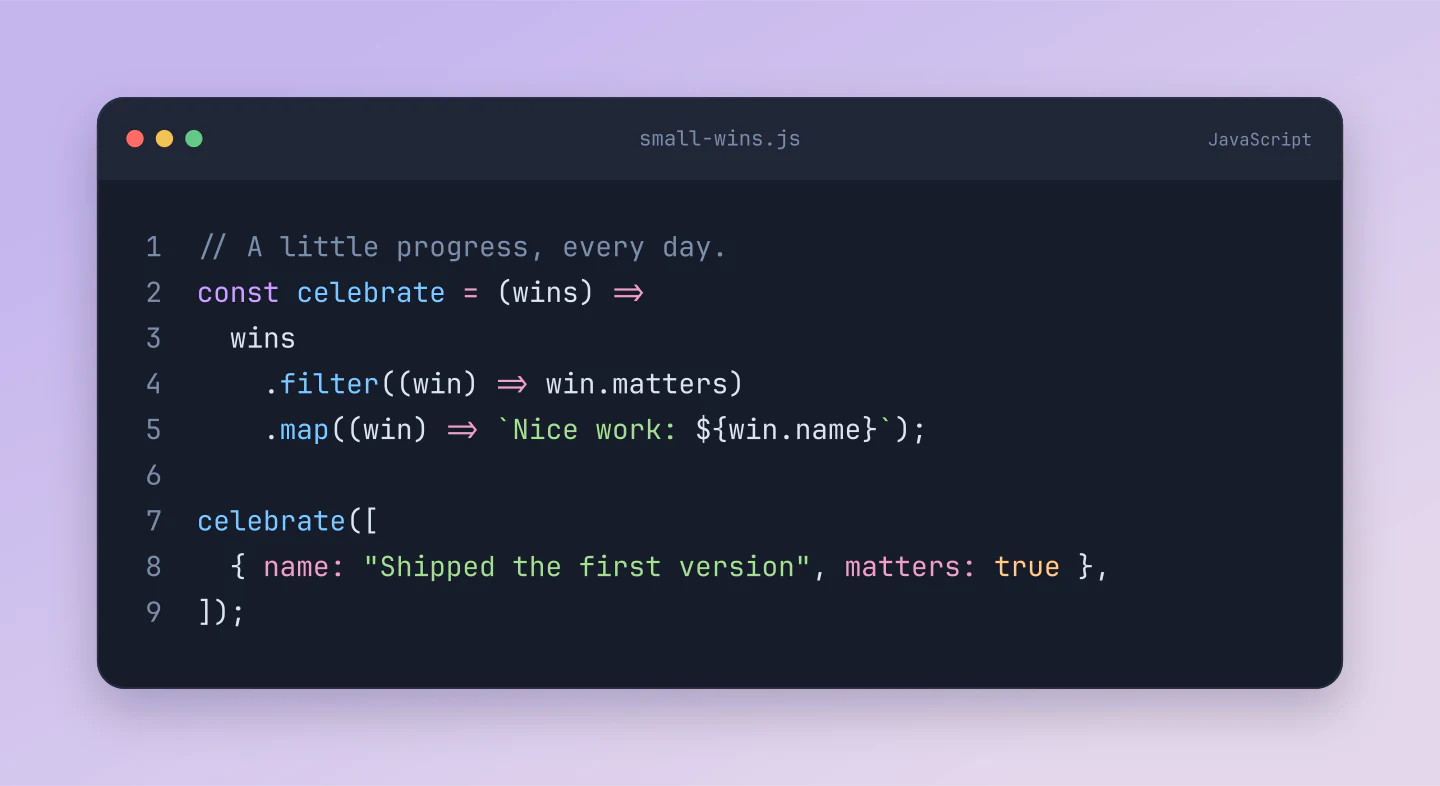
JavaScript · Midnight · Window
A useful little function with room to breathe. A ready-to-edit code image for your next developer post.
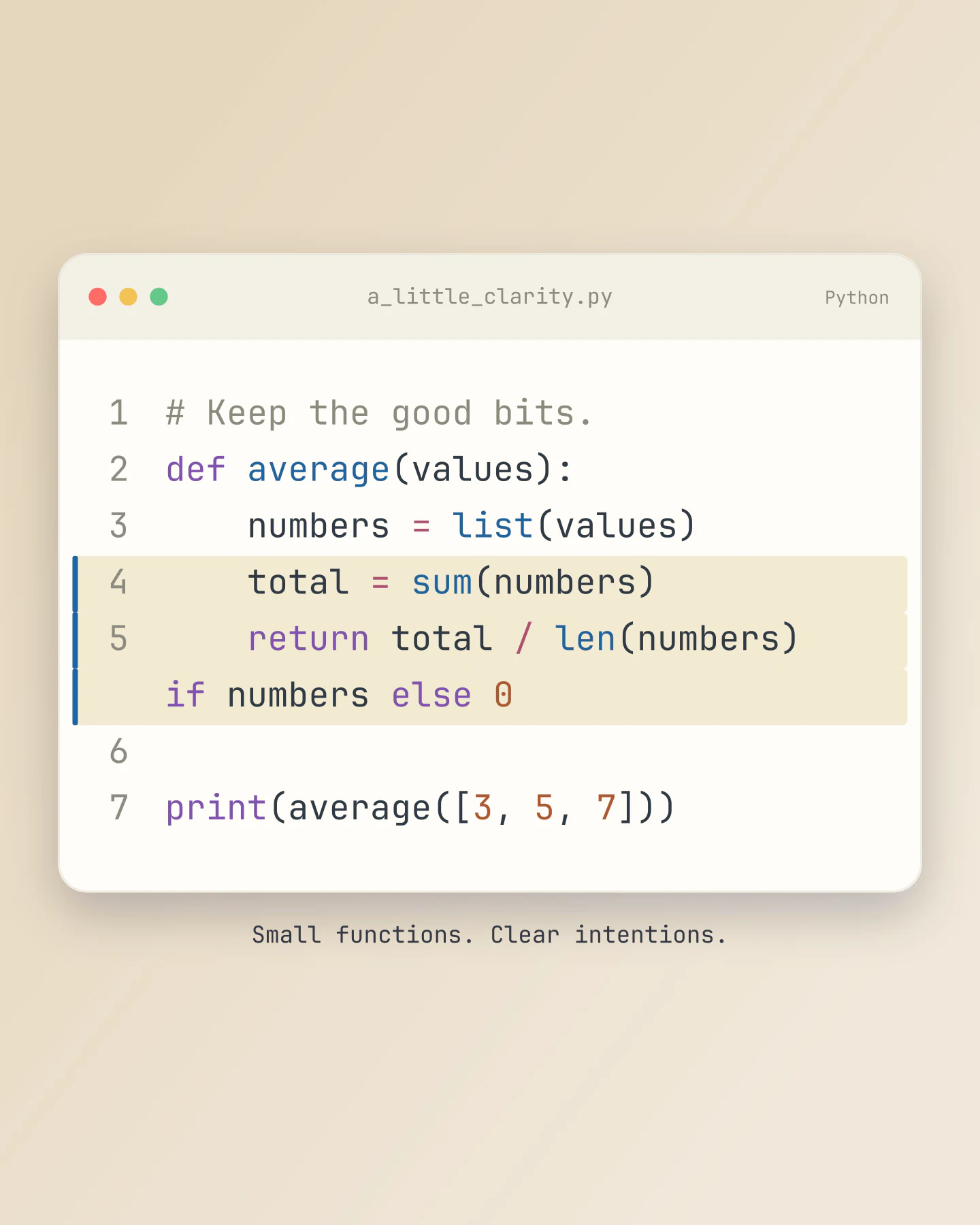
Python · Portrait 4:5 · Line focus
Highlight the lines you want to explain. A light code card for a tutorial, a classroom slide or a blog.
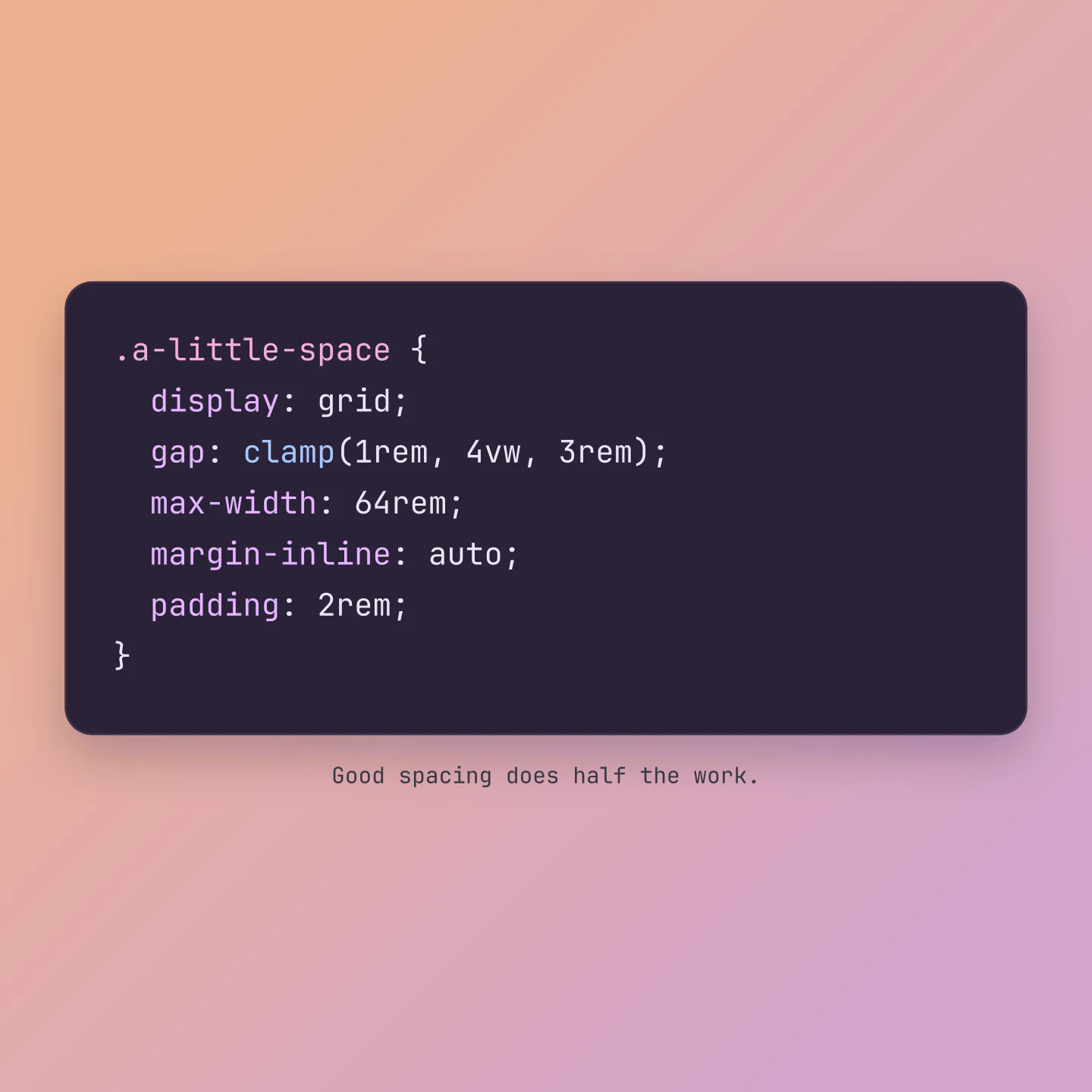
CSS · Square 1:1 · Minimal
Let the code stand on its own. Try this clean style for a CSS tip, design-system note or portfolio detail.
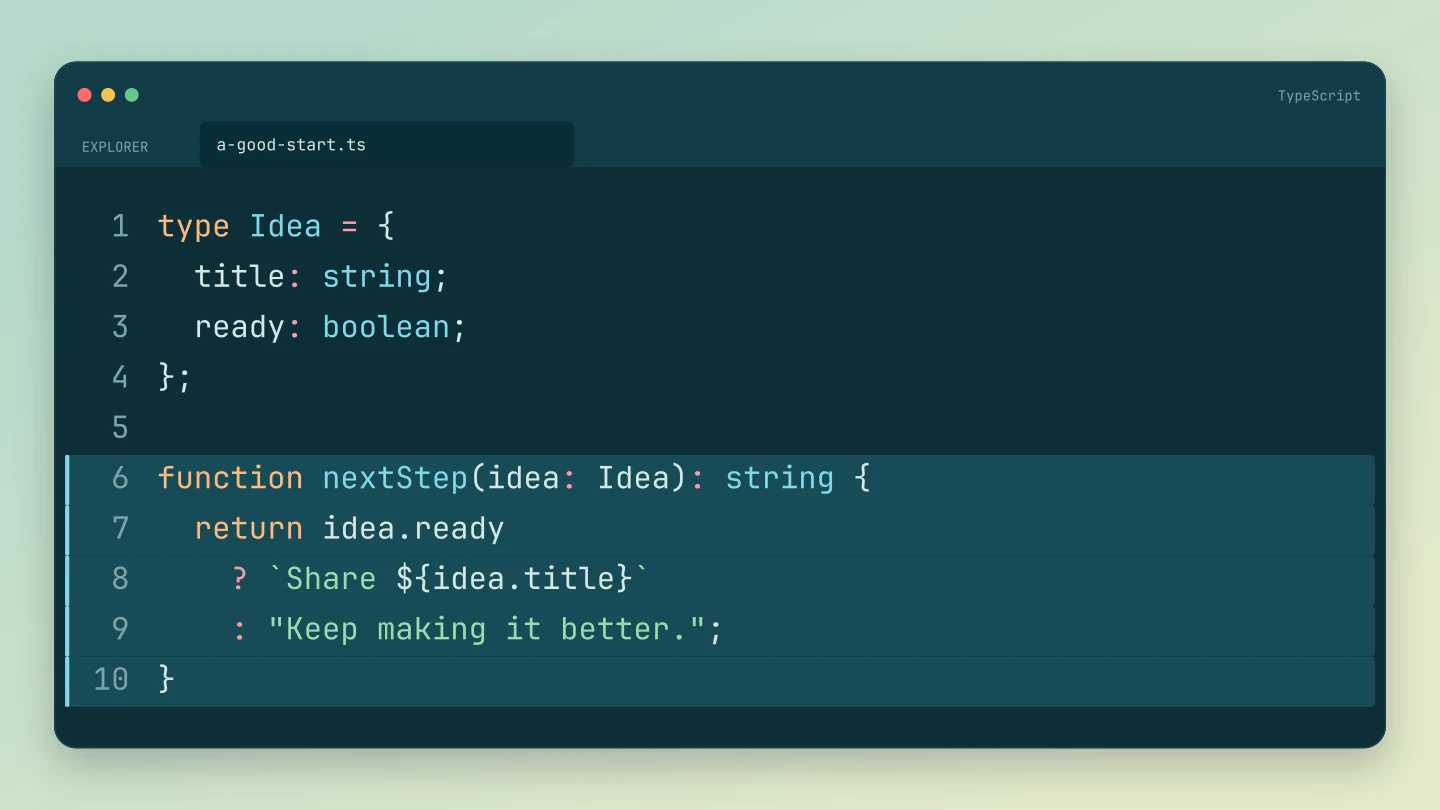
TypeScript · Wide 16:9 · Editor
A familiar editor tab, a calm blue palette and a typed example. Make an image for your README or a technical walkthrough.
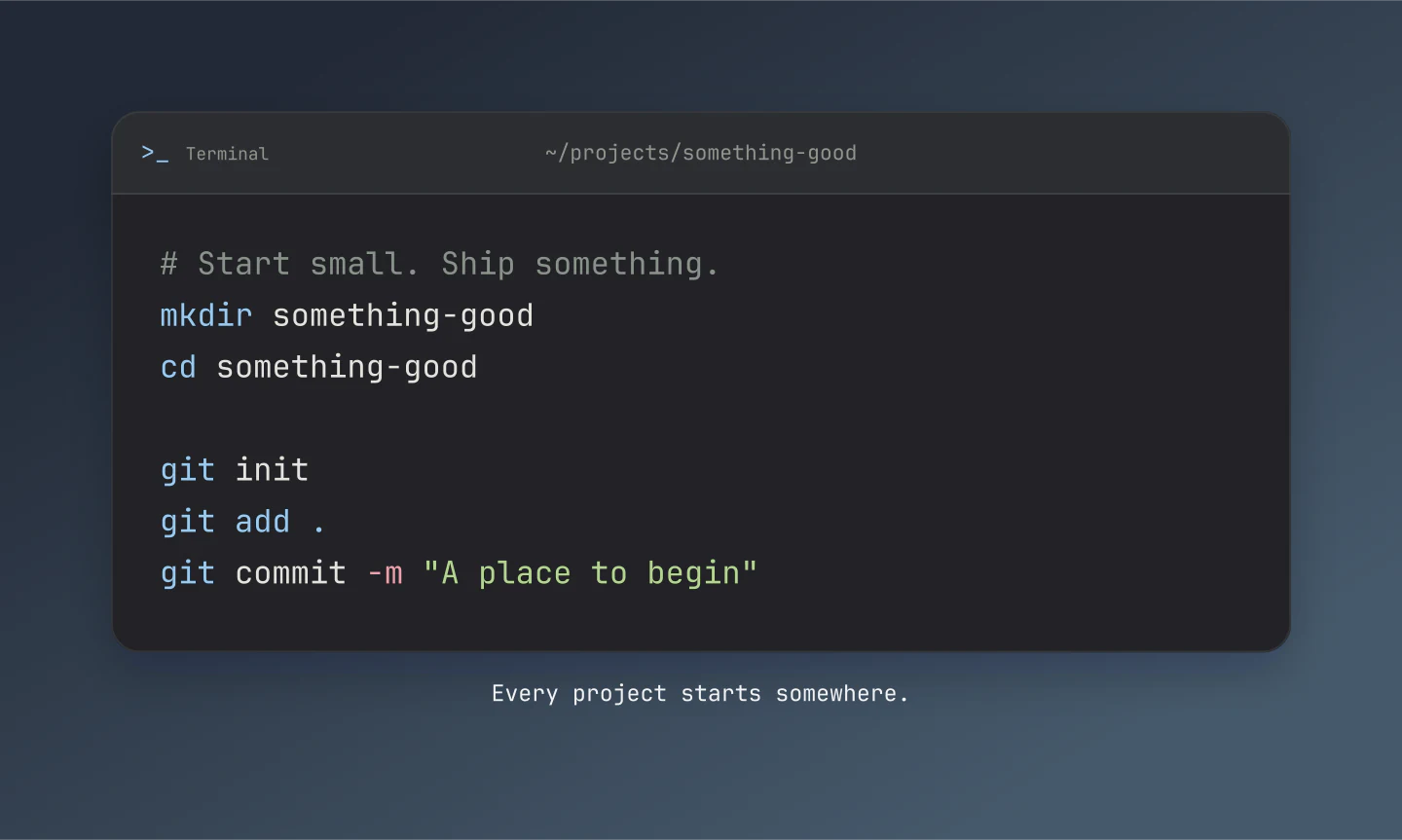
Shell · Graphite · Terminal
Turn commands into a tidy terminal image. Useful for a setup guide, release note or a build-in-public update.
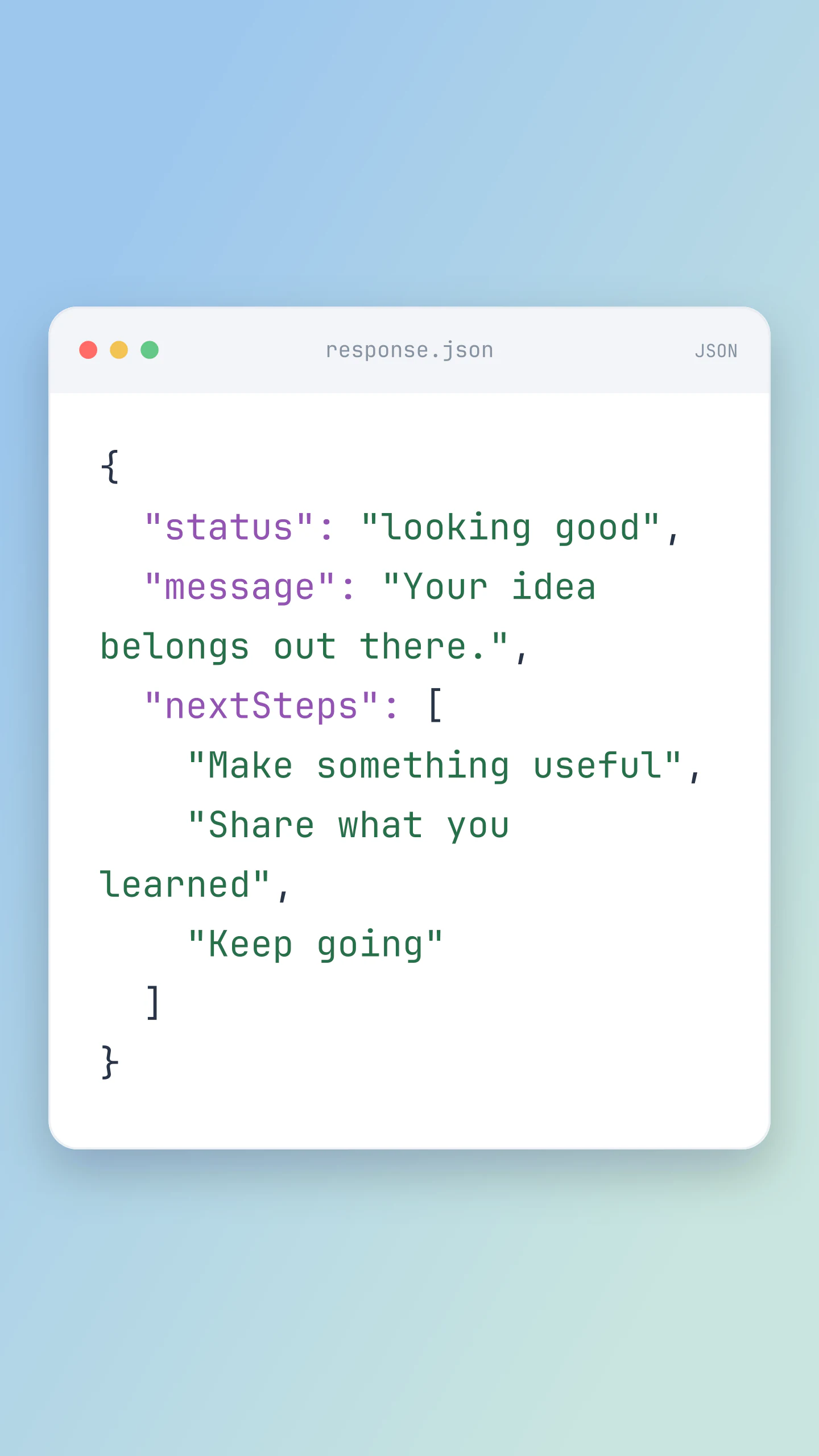
JSON · Story 9:16 · Daylight
A light JSON example on a vertical Story canvas. Try it for an API announcement or developer tip. Replace every key and value.
Made with this generator. Every example includes editable code and styling.
FROM CODE TO SOMETHING SHAREABLE
Paste a short snippet or open a text file. Pick its language and keep the whitespace that makes it readable.
Choose a theme and background. Highlight a few lines, adjust the text size and give the code some breathing room.
Download a PNG for a tutorial, social post or presentation. Save an editable project if you want to return to it.
CODE TO IMAGE, WITHOUT THE GUESSWORK
Click Edit code and paste your snippet, or open a local code file. Choose the language, pick a theme and adjust the spacing. Download a PNG or JPG when it looks right. You do not need to take a screenshot of your editor.
Yes. All current editing features and PNG or JPG downloads at 1×, 2× and 3× are free. No account, subscription or watermark. The download controls show the exact pixel dimensions for your design. Very large designs may need a smaller size to fit your browser’s image limits.
Yes. Enable Animation to watch your snippet type itself, appear line by line, or reveal blocks separated by blank lines. Preview for free, adjust the speed and pauses, and choose a portrait, square or wide video frame. Syntax highlighting stays consistent and long snippets scroll inside the window.
Pro members can export silent MP4 videos at 30 fps in 720p or 1080p. Choose a theme, add line highlights and adjust the text size before sharing it as a Reel, Story, tutorial or presentation. PNG and JPG downloads remain free.
Choose from 25 options, including JavaScript, TypeScript, React JSX and TSX, Python, HTML, CSS, JSON, SQL, Bash, Java, C, C++, C#, Go, Rust, PHP, Swift, Kotlin and Ruby. YAML, Markdown, Dockerfile, Diff and plain text are included too. Highlighting changes the colors, not your code.
Choose Editor for a file-tab layout, Window for a classic desktop frame, or Terminal for a command-line look. Minimal removes the window header. These are customizable visual styles, not captures of a running editor or terminal.
Yes. Open Background & export and enable Transparent canvas. The area around your code window becomes transparent, so you can place it on a presentation, website or video. Choose PNG, because JPG does not support transparency.
Yes. Use the canvas presets above the preview: Square is 1080 × 1080, Portrait is 1080 × 1350, Story is 1080 × 1920 and Wide is 1920 × 1080 at 1×. Each preset also adjusts the code window width and text size, so the content reflows for that shape. The result is centered and fitted without cropping. Choose Fit to code for an image that follows the snippet’s size.
Open Size & lines and enter line numbers such as 2, 4-6. You can also dim the other lines and change the starting line number. Wrapped lines keep their original line number, so the highlight follows the whole line.
Start with a short snippet and a font size that is easy to read at feed size. Use a narrower window for a phone screen, or a wider one for a slide or README. Download at 2× or 3× for sharper text. More pixels help clarity, but shorter code usually helps more.
Yes. PNG is a good choice for crisp text. Include a plain-text code block beside the image when readers need to copy the code or use a screen reader. Add useful alt text that explains what the example demonstrates.
No. Editing, highlighting and image creation happen in your browser. The tool does not run your code or send it to a server. A draft is saved in this browser, and Save project downloads an editable file to your device. Check for API keys or other private details before sharing your finished image.
Tabs can use 2, 4 or 8 spaces. Long lines wrap by default; switch wrapping off to let the window grow instead. Each snippet can contain up to 12,000 characters and 160 lines. Very large images may need a smaller resolution or a shorter snippet.
Yes. Save project downloads an editable file with your settings, text and uploaded images. Open project restores it in the same tool, or lets you paste project JSON from an assistant. Review it before replacing your draft. Files are processed in your browser, not uploaded to your account.
Yes. Images exported from these social and app mockup tools can be used in personal projects, social posts, presentations and client work without a Mockaps subscription or attribution. You still need permission for content you add. Platform names and logos belong to their owners; a mockup does not imply their endorsement.