
Pick the moment.
An incoming call, a conversation in progress or a catch-up just finished. Choose an iPhone or Android starting point.
A familiar ring. Your own story.
Make a call screen worth picking up.
Keep an editable copy on your device. How it works
A FEW WAYS TO MAKE IT YOURS
Opportunity calling. A familiar face. A conversation worth having. Start with one of these screens and make every detail yours.
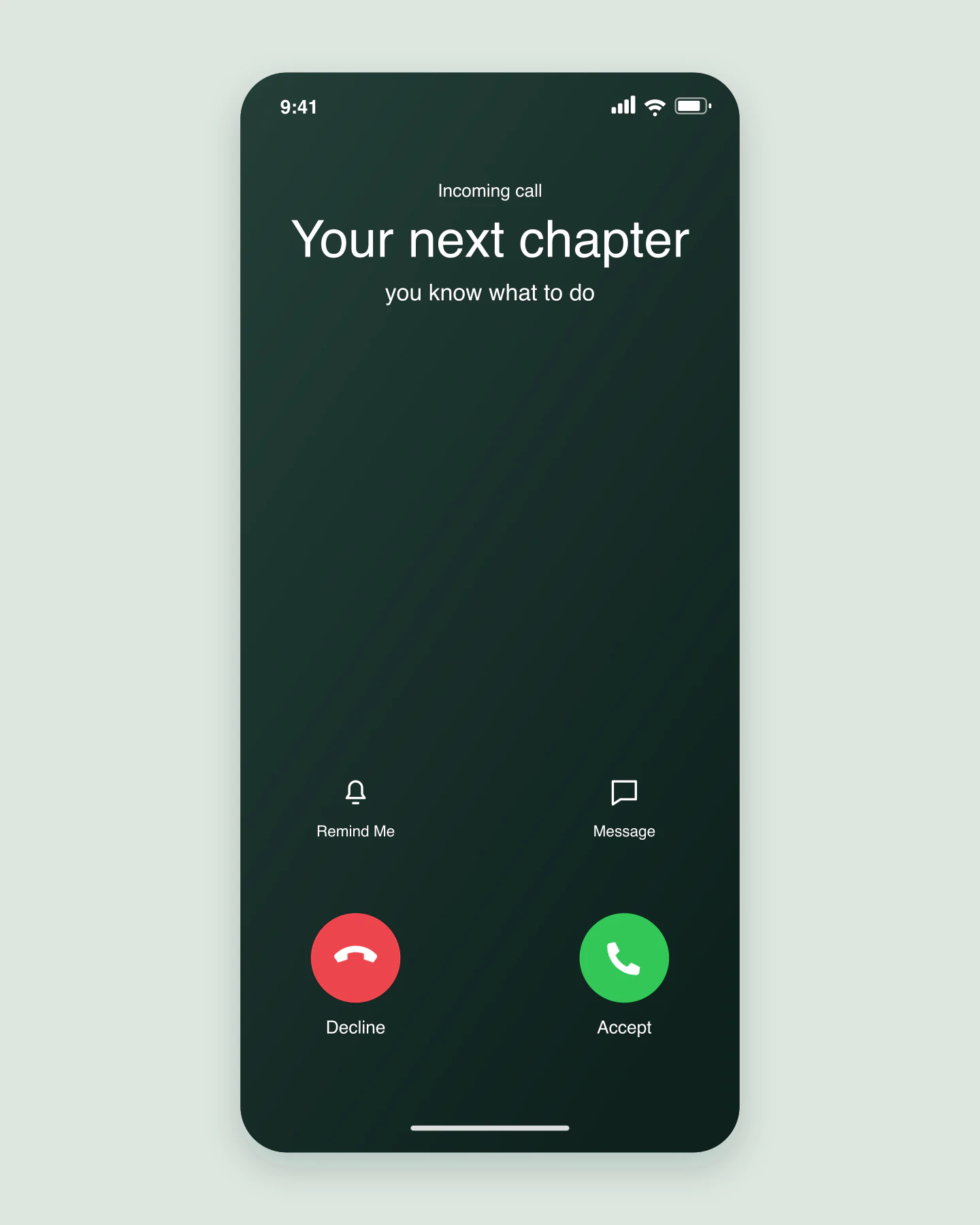
iPhone · Incoming · Forest
A familiar incoming call becomes a little encouragement. Edit the caller for a launch, a quote or your next announcement.
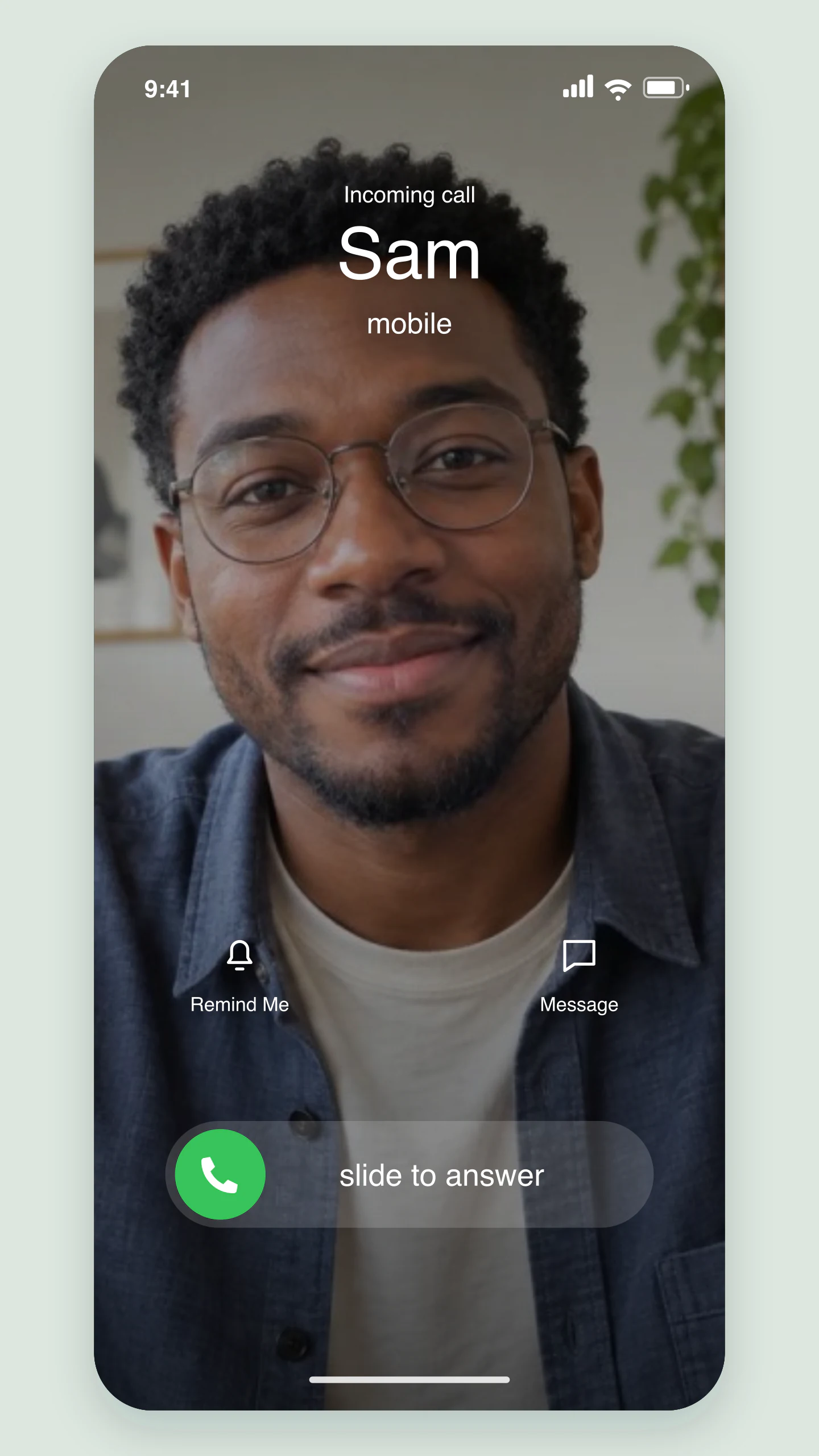
iPhone · Photo poster · Story
Give your caller the whole screen. Swap the photo, drag it into place and try the slide-to-answer view.
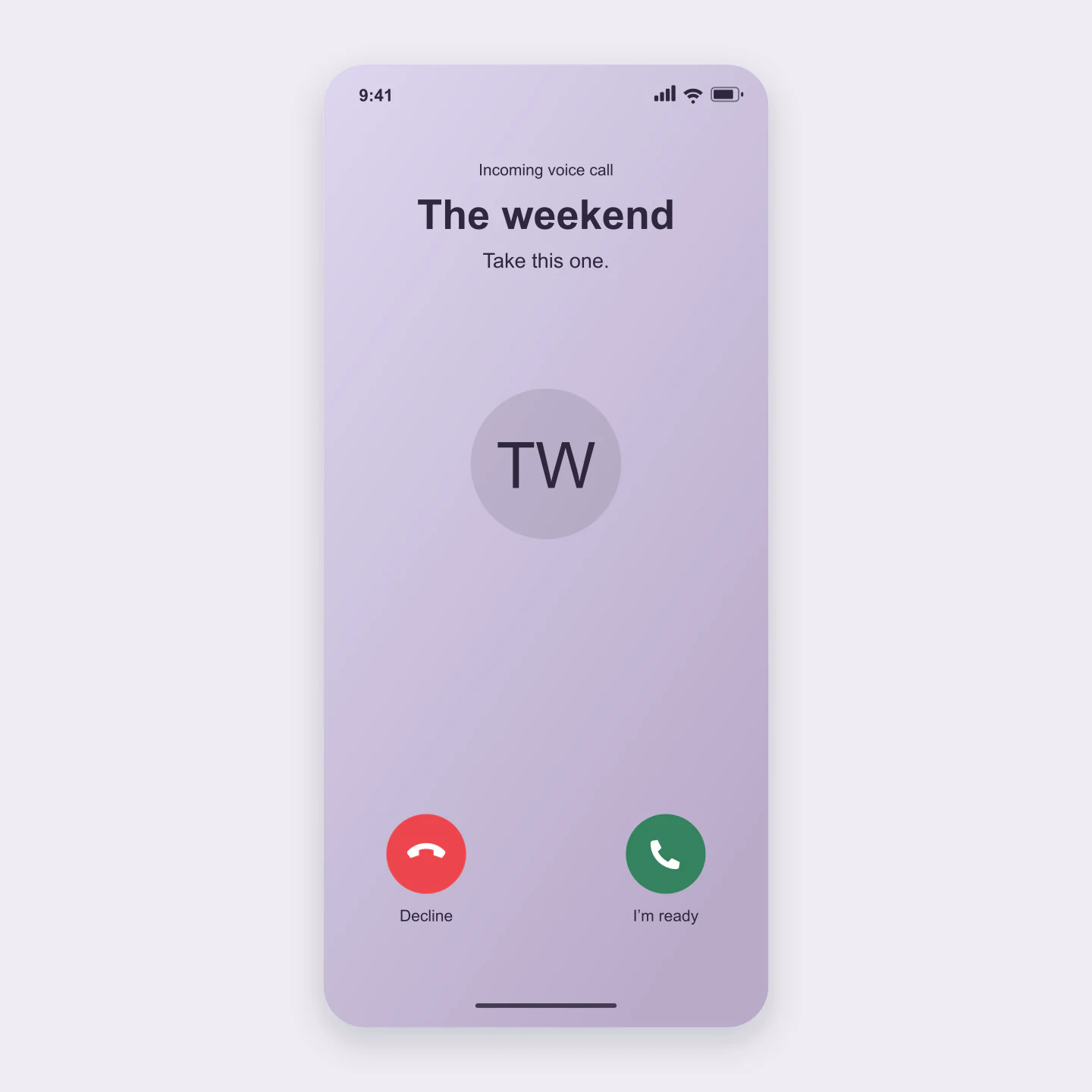
Android · Incoming · Lilac
A light Android call screen for a playful social post. Change the name, contact label and answer-button text.
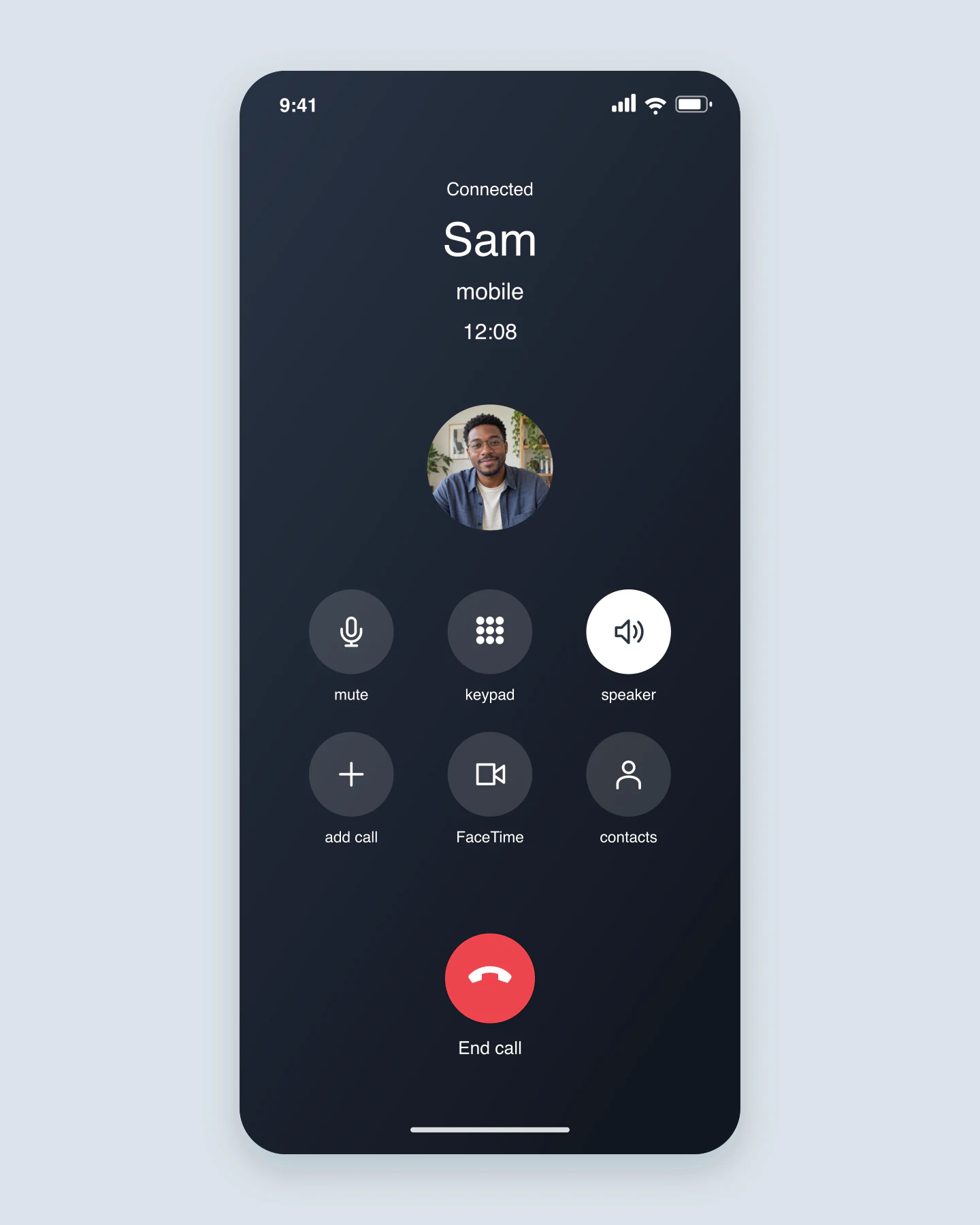
iPhone · Active call · Midnight
An active call with a contact photo and speaker mode. Edit the timer and adjust the mute and speaker controls.
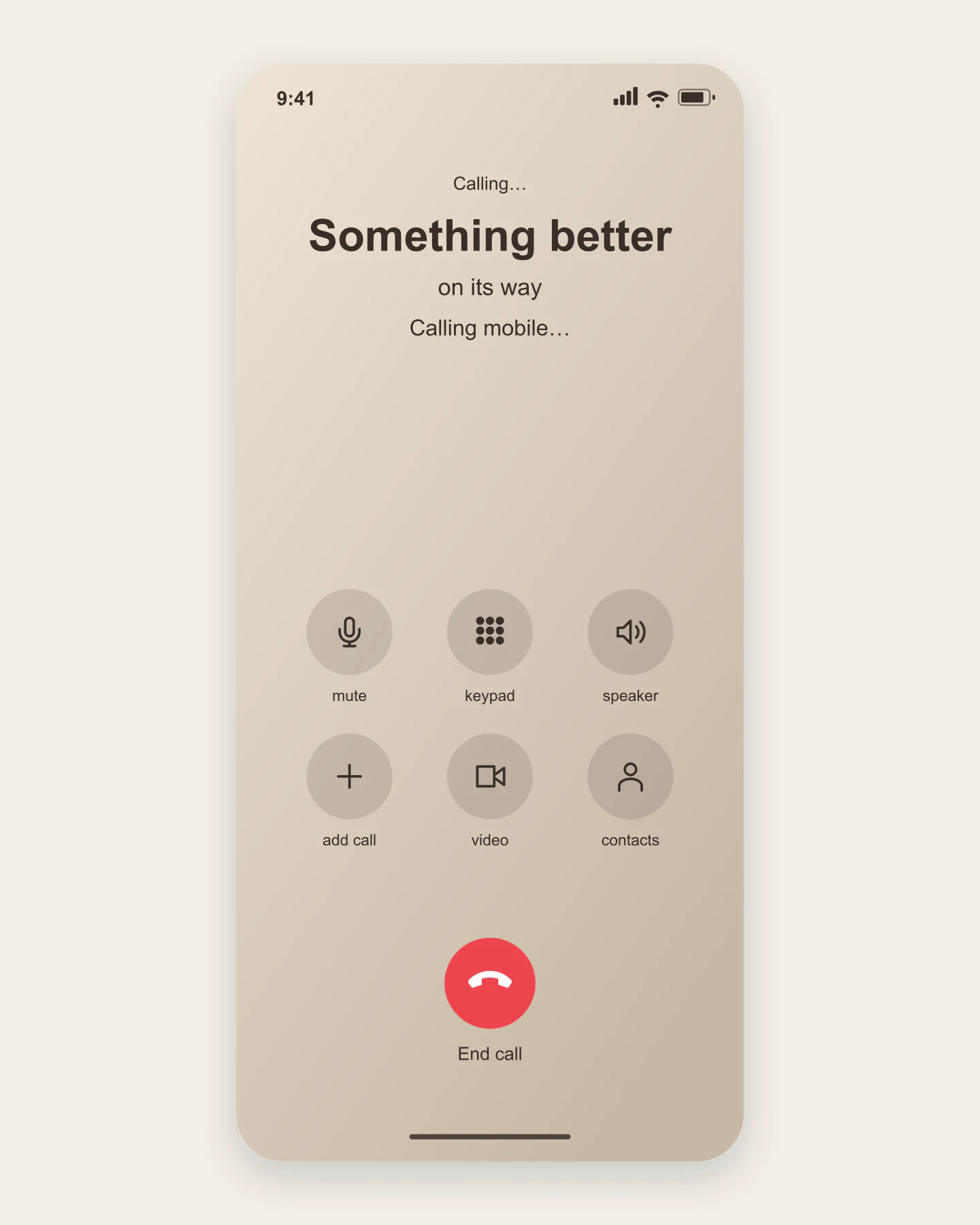
Android · Outgoing · Warm sand
A quiet outgoing call for a campaign or a small reminder. Keep the call controls or hide them for a simpler image.
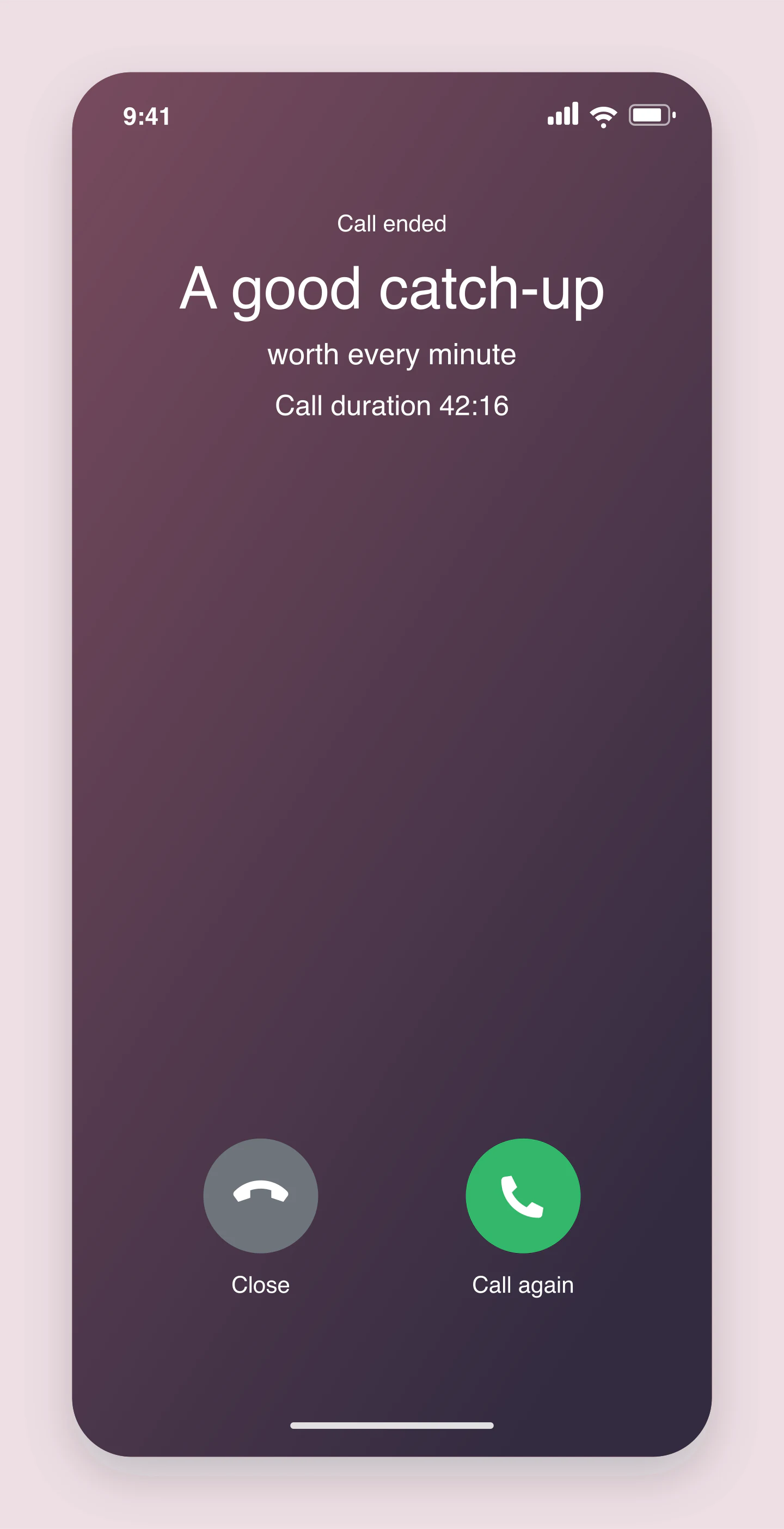
iPhone · Call ended · Rose
The end of a good catch-up. Make a simple call-ended screen with your own contact, duration and colors.
Made with this tool. Every example includes the editable caller, call state, photo and canvas settings.
A FAMILIAR RING. A FRESH IDEA.
An incoming call, a conversation in progress or a catch-up just finished. Choose an iPhone or Android starting point.
Edit the caller directly on the canvas. Add a portrait, make it a full-screen photo or let a few words do the talking.
Choose a Story or Square canvas and download a free PNG. Save a project to keep the same version for later.
A FEW USEFUL DETAILS
Choose iPhone or Android, then select an incoming, outgoing, active or ended call. Edit the caller name on the canvas, upload a photo and choose your colors. Download a free PNG when it looks right.
Yes. All current editing features and PNG or JPG downloads at 1×, 2× and 3× are free. No account, subscription or watermark. The download controls show the exact pixel dimensions for your design. Very large designs may need a smaller size to fit your browser’s image limits.
Yes. Choose iPhone and Incoming. Use the familiar Accept and Decline buttons or choose Slide to answer in Call details for a locked-phone style. Add a contact photo, change the clock and customize the caller name.
Yes. Switch to Android for a different type treatment and call layout. Use light or dark screen palettes, add a contact portrait and choose the call state. These are platform-inspired mockups; phone interfaces vary by device and operating-system version.
Open Caller & photo and upload a PNG, JPG or WebP. Choose Full photo, then Reposition photo on canvas. Drag the image to frame it, or use the arrow keys. Adjust zoom and photo shading to keep the caller details readable.
Yes. Choose On a call to show a timer, call controls and the end-call button. Set the timer yourself, highlight speaker or mute, or hide the controls. Call ended shows a finished call with a duration and call-again button.
Yes. Turn a phrase into the caller name, such as Your next chapter or The weekend. Use it for a social post, campaign concept, presentation or playful reminder. Every example below is editable.
Choose Fit, Square, Portrait, Story or Wide above the preview. The call screen keeps its proportions inside the canvas. Download at 1×, 2× or 3× for free. A Story canvas is 1080 × 1920 pixels at 1×.
Yes. Open Background & export, choose PNG and enable Transparent canvas. This removes the outer background while keeping the call screen itself. Use zero canvas padding for a tight crop.
No. This tool makes a static image. It does not call anyone, connect to a phone number, play a ringtone or export animation. The preview controls are part of the image.
Yes. Save project downloads an editable file with your settings, text and uploaded images. Open project restores it in the same tool, or lets you paste project JSON from an assistant. Review it before replacing your draft. Files are processed in your browser, not uploaded to your account.
Yes. Images exported from these social and app mockup tools can be used in personal projects, social posts, presentations and client work without a Mockaps subscription or attribution. You still need permission for content you add. Platform names and logos belong to their owners; a mockup does not imply their endorsement.
An independent mockup tool by Mockaps. iOS and Android belong to their respective owners. This tool is not affiliated with or endorsed by Apple or Google.